Exonita POS · Restaurant · Sign-in security guide
Sign-in security
Protect your login with two-step verification: a 6-digit code from an authenticator app on your phone. Set it up, sign in with it, keep your backup codes, and confirm it's you before protected actions.
What you can do
- Turn on two-step verification for your own login
- Sign in with a code from your authenticator app, or with a backup code
- Trust a browser you use every day, and remove it later
- Confirm it's you before protected actions such as cancelling a bill
Ask your administrator
- Lost or changed your phone? Use one of your backup codes to sign in. If you have none left, ask your administrator to Reset two-step verification for you in User Manager; then set it up again.
- If sign-in says your set-up deadline has passed, ask your administrator to reset your two-step verification.
Your administrator can change what your login can see. If a button in this guide is missing for you, ask them.
Your day at a glance
Task 1
When your role requires two-step verification
Know what the reminder after sign-in means and how long you have.
WhereAfter you sign in
-
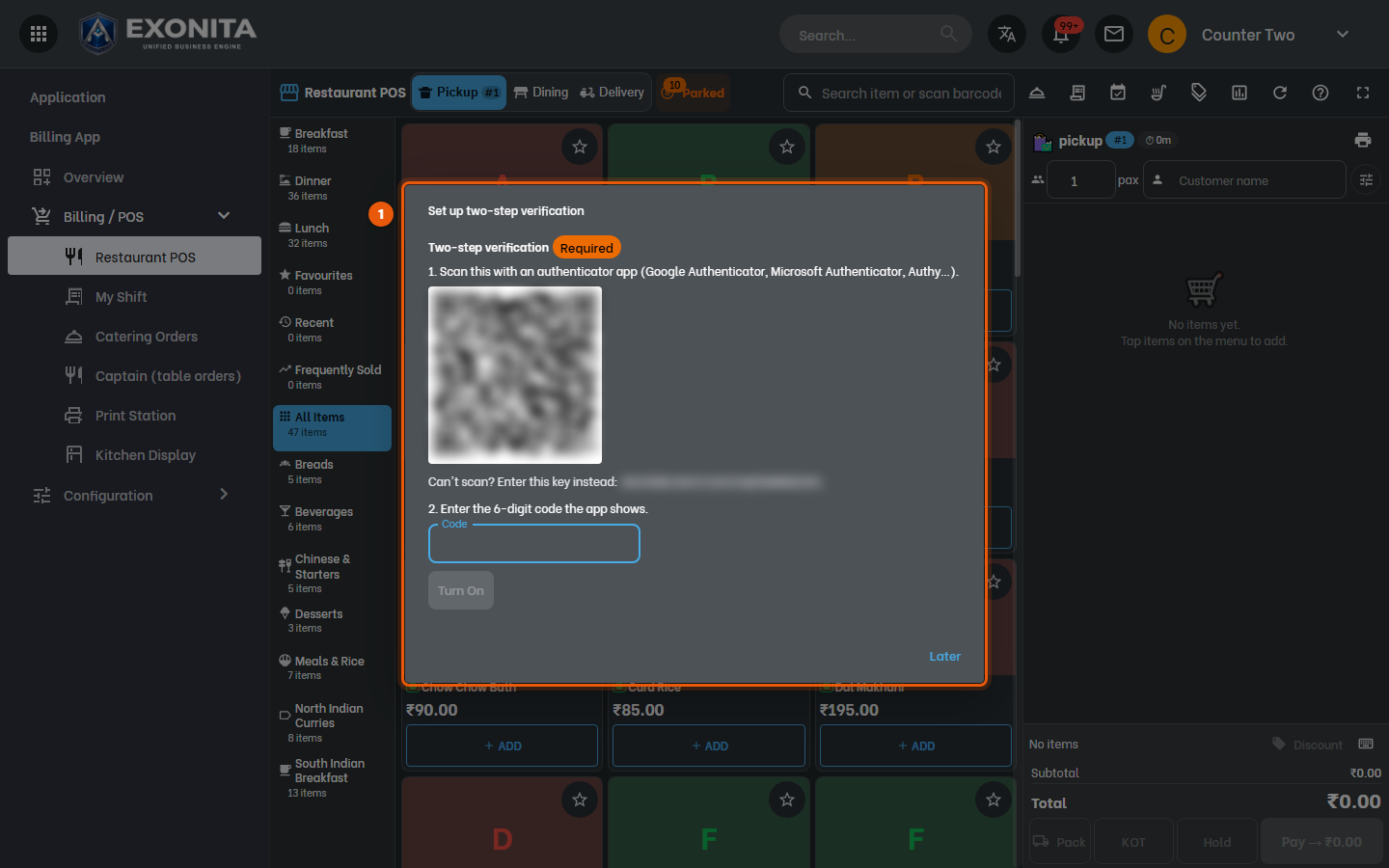
If your administrator requires two-step verification for your role, Set up two-step verification opens after you sign in, marked Required. Set it up right there (scan the QR code, enter the code, select Turn On, as in the next task), or select Later to be reminded at your next sign-in.
You'll see: You can choose Later until the deadline your administrator set. After that, sign-in is refused until an administrator resets your two-step verification.
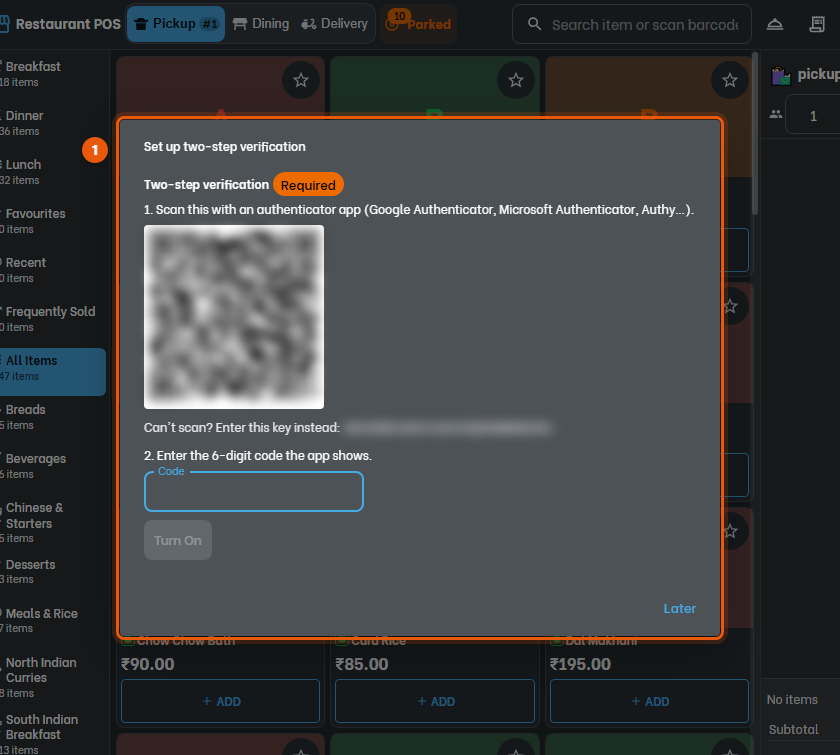
ImportantIf your administrator set 0 days, there is no Later: you set it up the first time you sign in.
Task 2
Set up two-step verification
Link your login to an authenticator app on your phone.
WhereYour name (top right) → My account → Security & Sessions
-
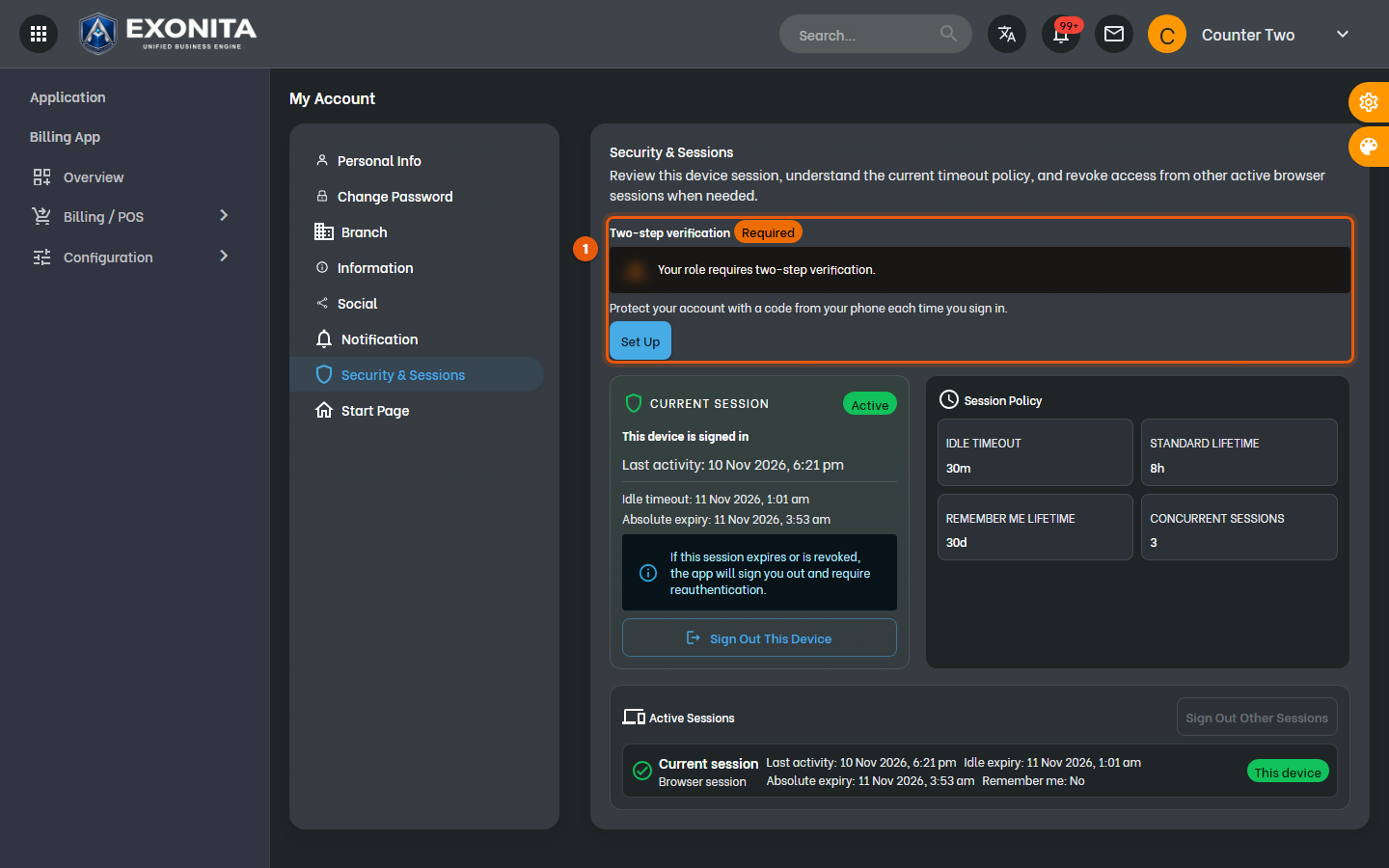
Install Microsoft Authenticator or Google Authenticator on your phone. Then select your name at the top right → My account → Security & Sessions. Next to Two-step verification, select Set Up.
You'll see: Two-step verification shows Off or Required until you finish.
-
In the authenticator app, add an account and scan the QR code. If you can't scan it, type the key shown under Can't scan? instead.
You'll see: The app shows a 6-digit code for Exonita that changes every 30 seconds.
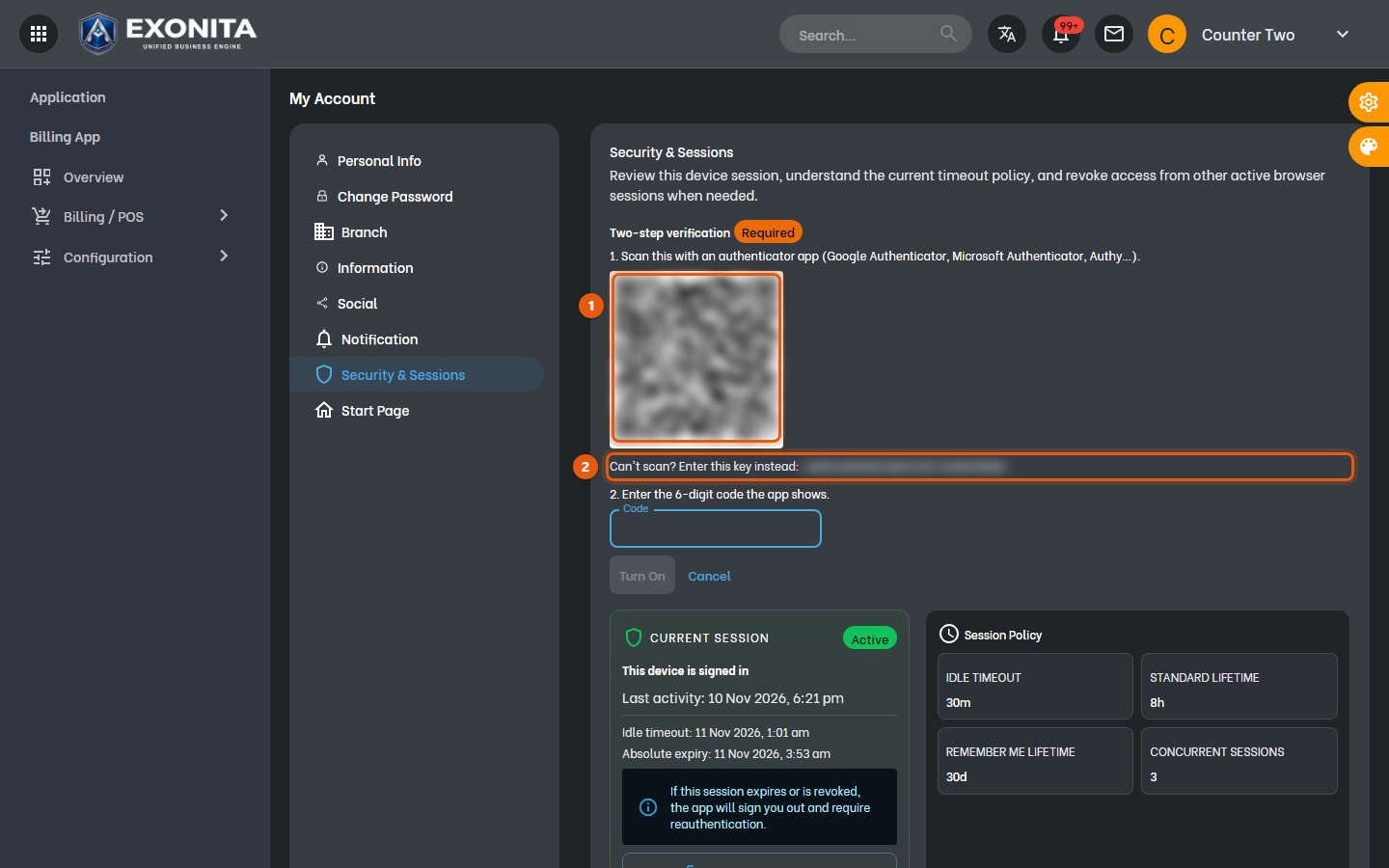
ImportantNever share the QR code or the key. Anyone who has them can make your codes.
-
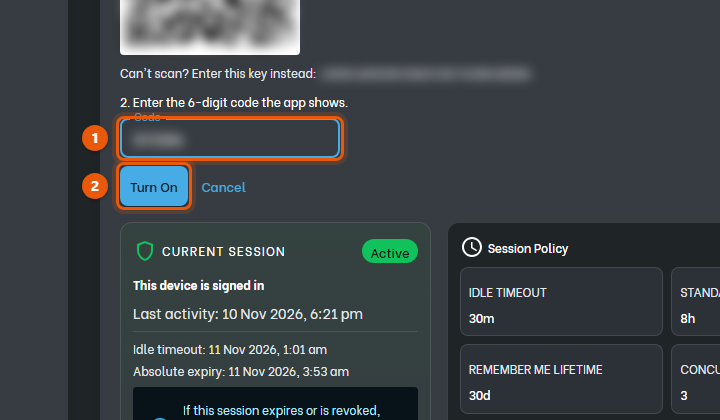
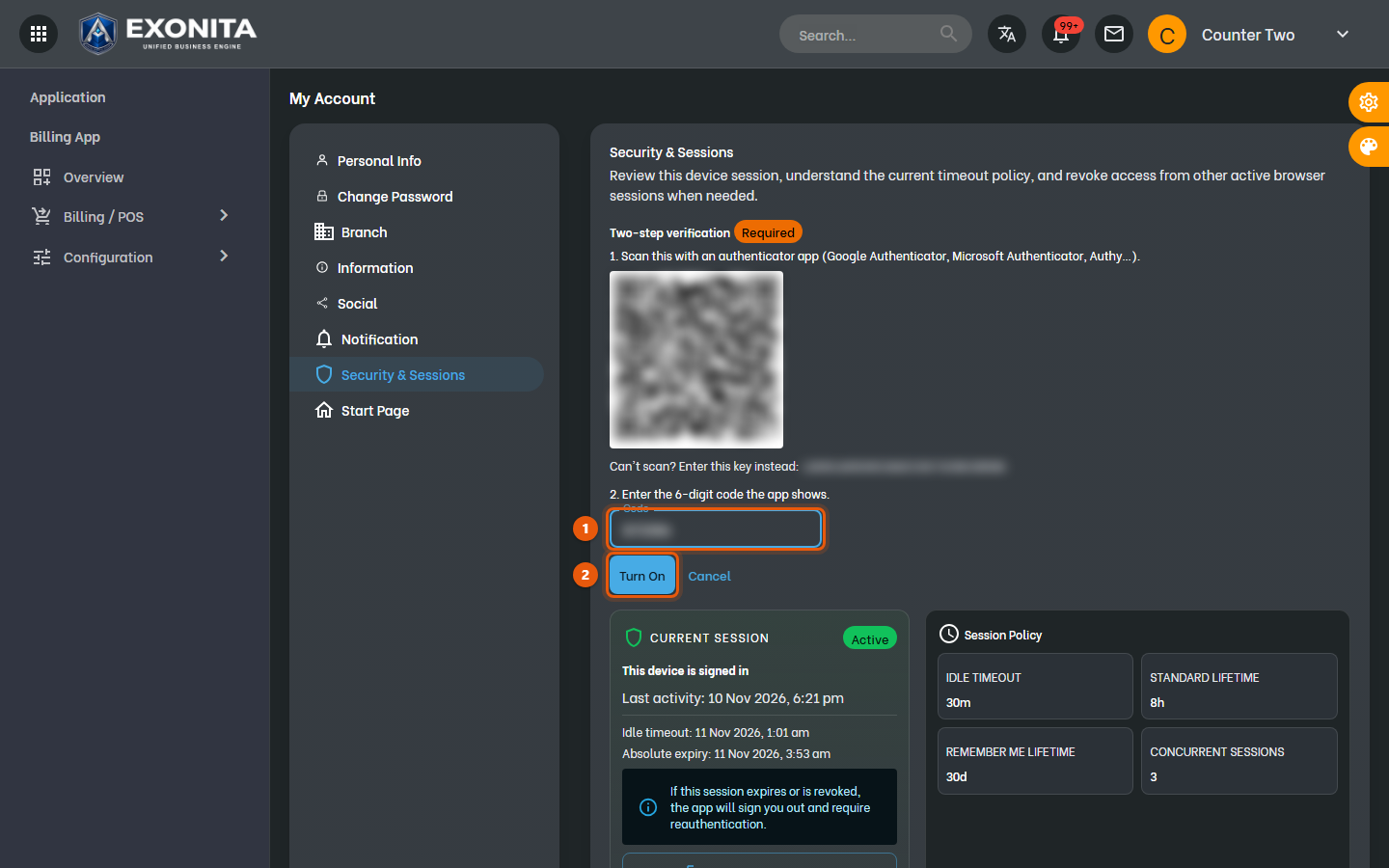
Type the 6-digit code from the app into Code and select Turn on.
You'll see: Two-step verification is on.
-
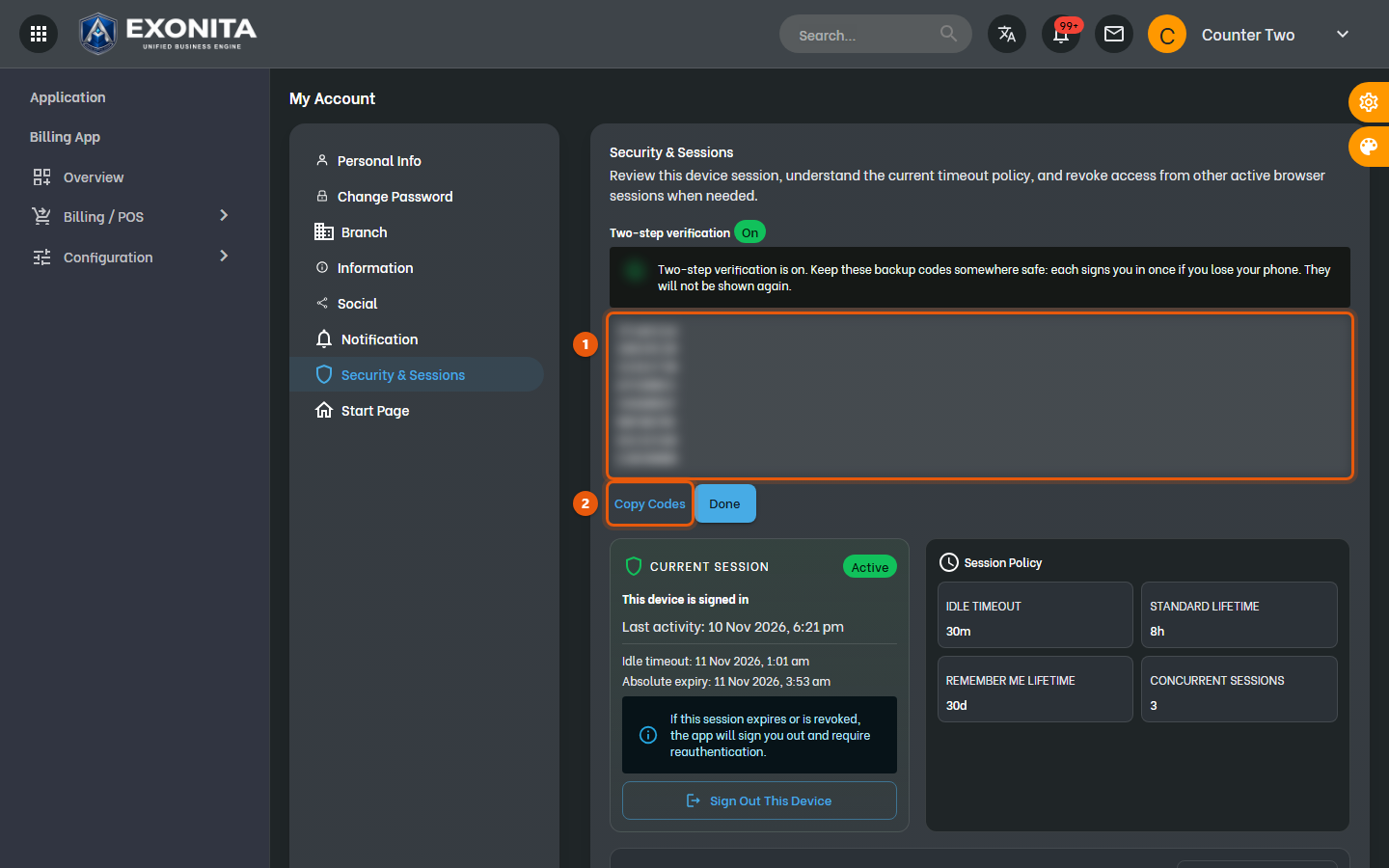
Your 8 backup codes appear. Select Copy codes and keep them somewhere safe, away from your phone, such as a password manager or a printed copy. Then select Done.
You'll see: Each backup code signs you in once if you lose your phone. They are not shown again.
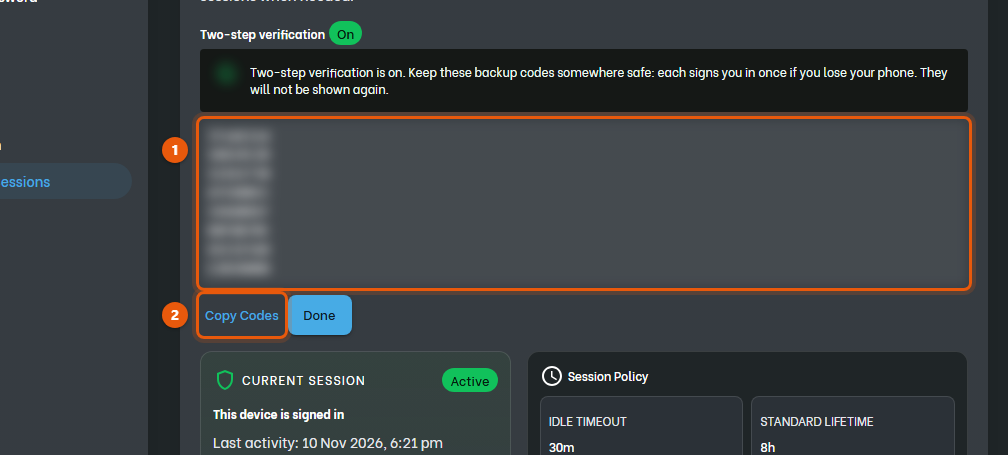
ImportantKeep your backup codes. Without them, losing your phone means asking your administrator to reset your two-step verification.
Task 3
Sign in with your code
Sign in once two-step verification is on.
WhereSign-in page
-
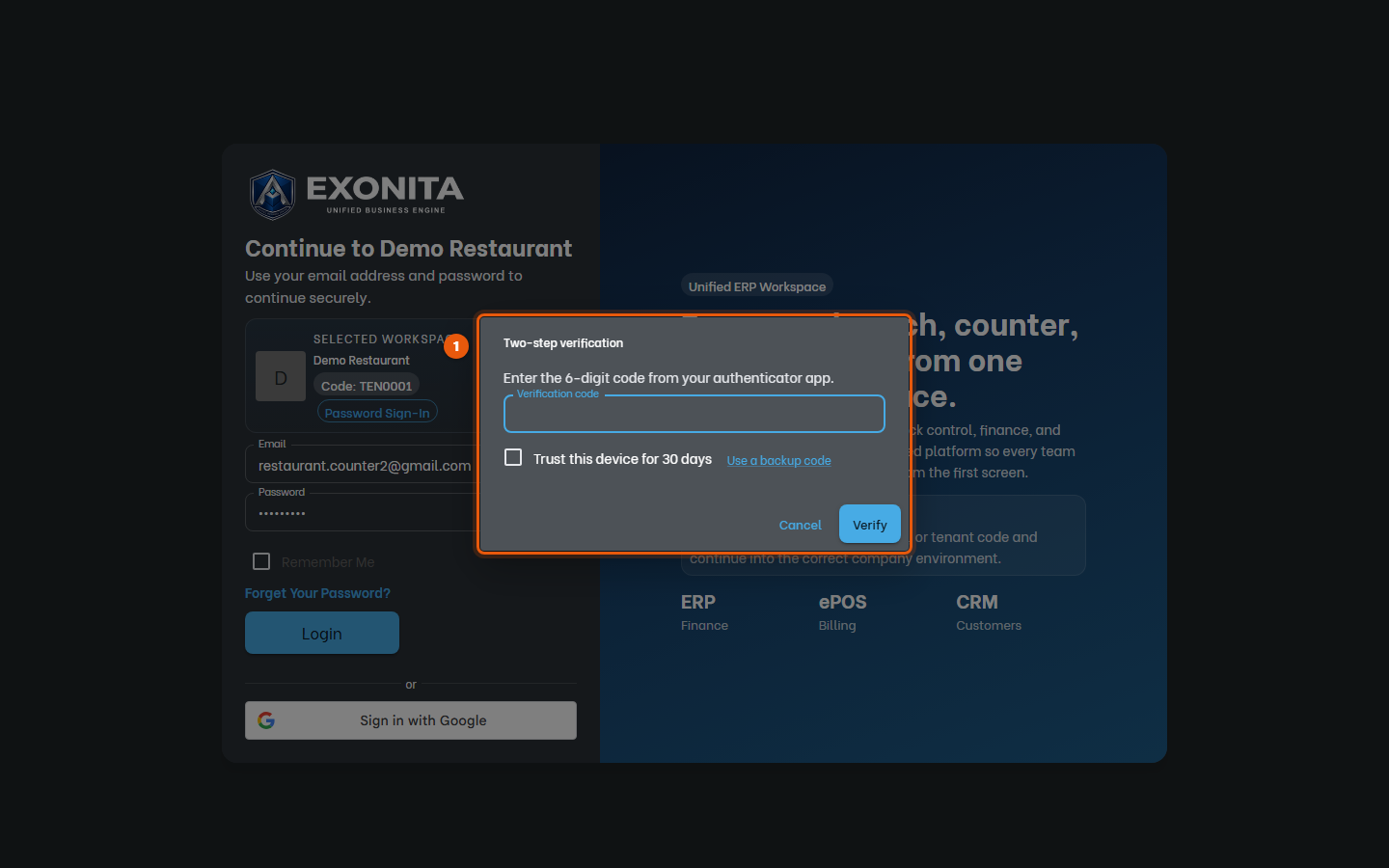
Sign in with your email and password as usual. Two-step verification then asks for the Verification code. Open the authenticator app and type the 6-digit code it shows for Exonita.
You'll see: If the code is accepted, you are signed in.
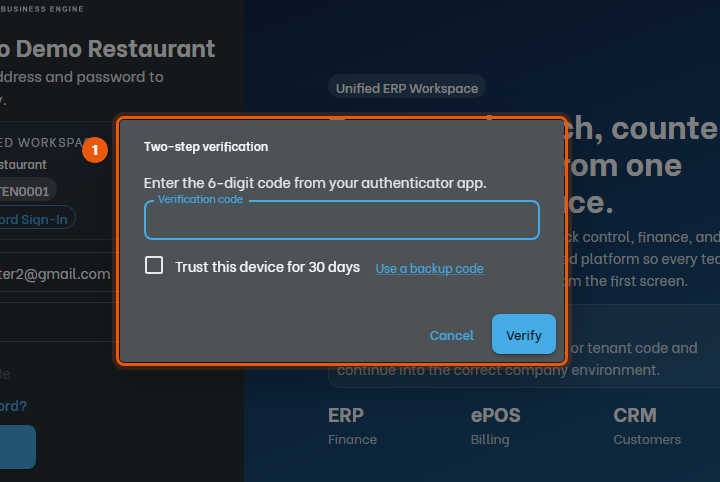
TipA code that doesn't match usually means the phone's clock is off. Turn on automatic date and time on the phone and try the newest code.
-
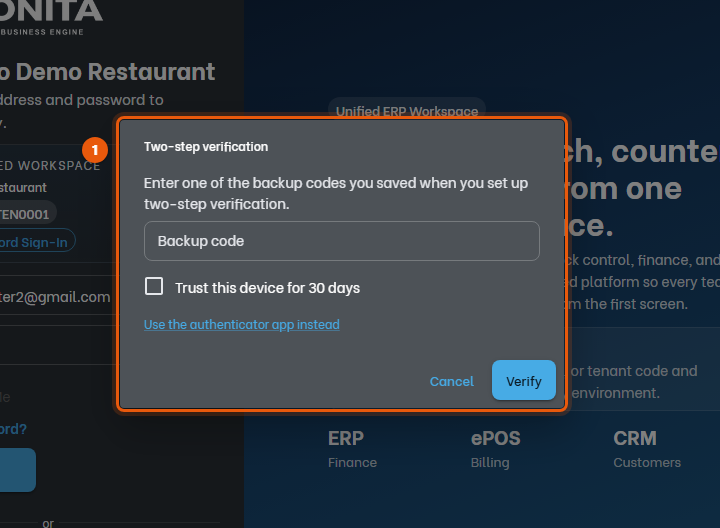
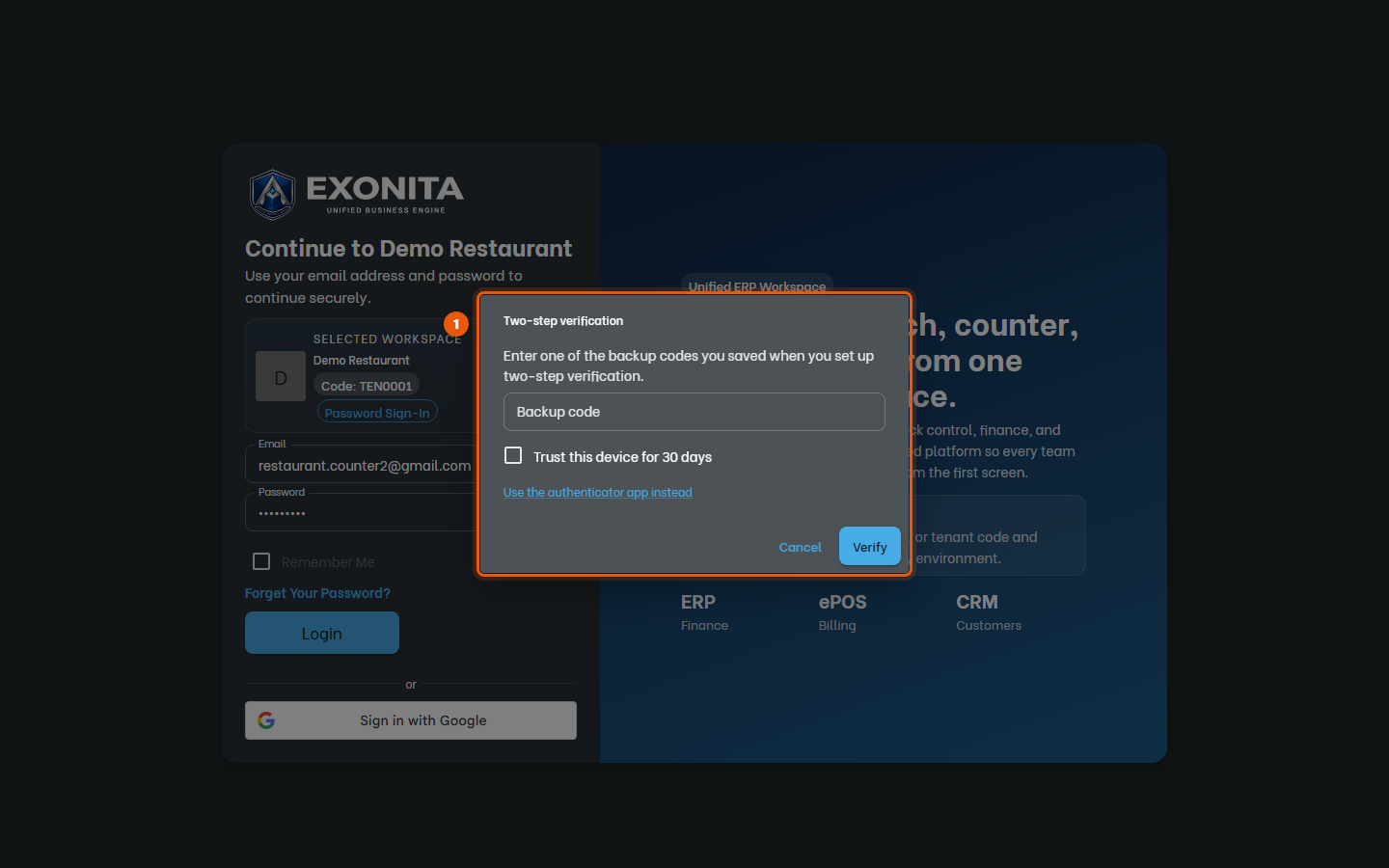
No phone with you? Select Use a backup code and type one of your backup codes.
You'll see: You are signed in. That backup code can't be used again. Select Use the authenticator app instead to go back to the code.
TipWhen you are running low on backup codes, get a fresh set: My account → Security & Sessions → New Backup Codes.
-
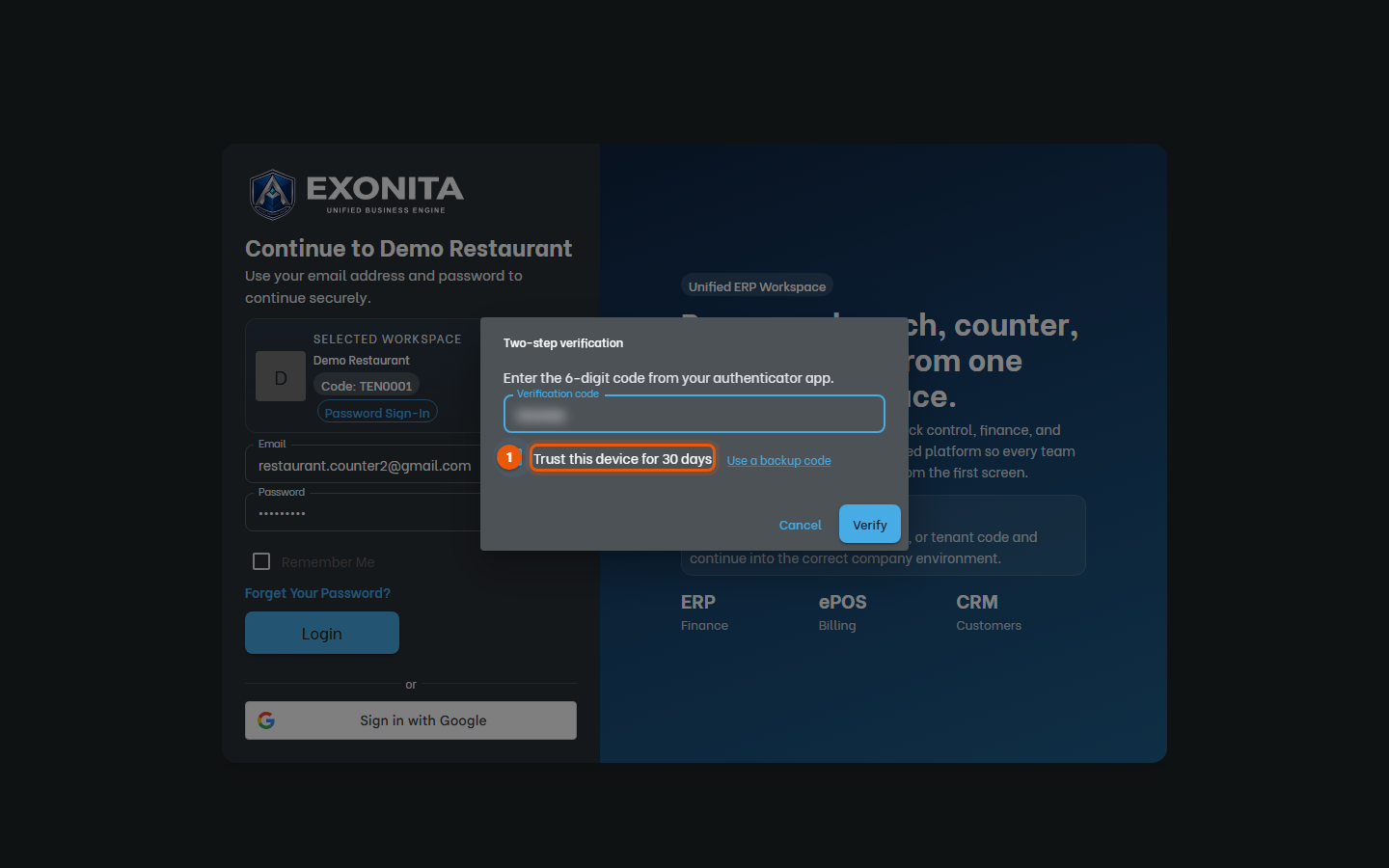
On a computer only you use, tick Trust this device before you enter the code.
You'll see: This browser won't ask for a code again for the number of days your administrator allows.
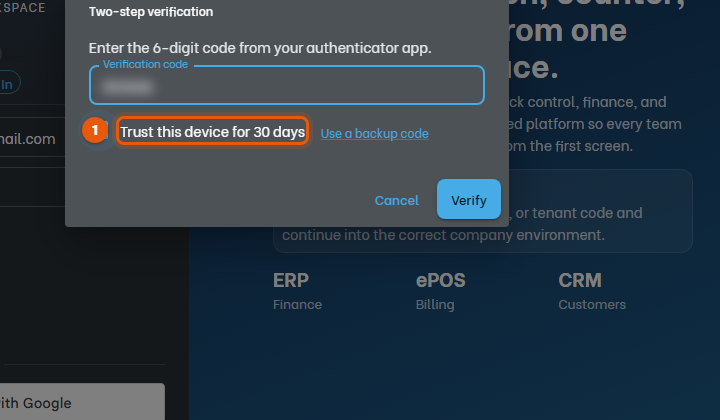
ImportantNever trust a shared counter PC. Trust this device shows only if your administrator allows it.
Task 4
See and remove trusted devices
Check which browsers skip the code, and stop one from skipping it.
WhereMy account → Security & Sessions
-
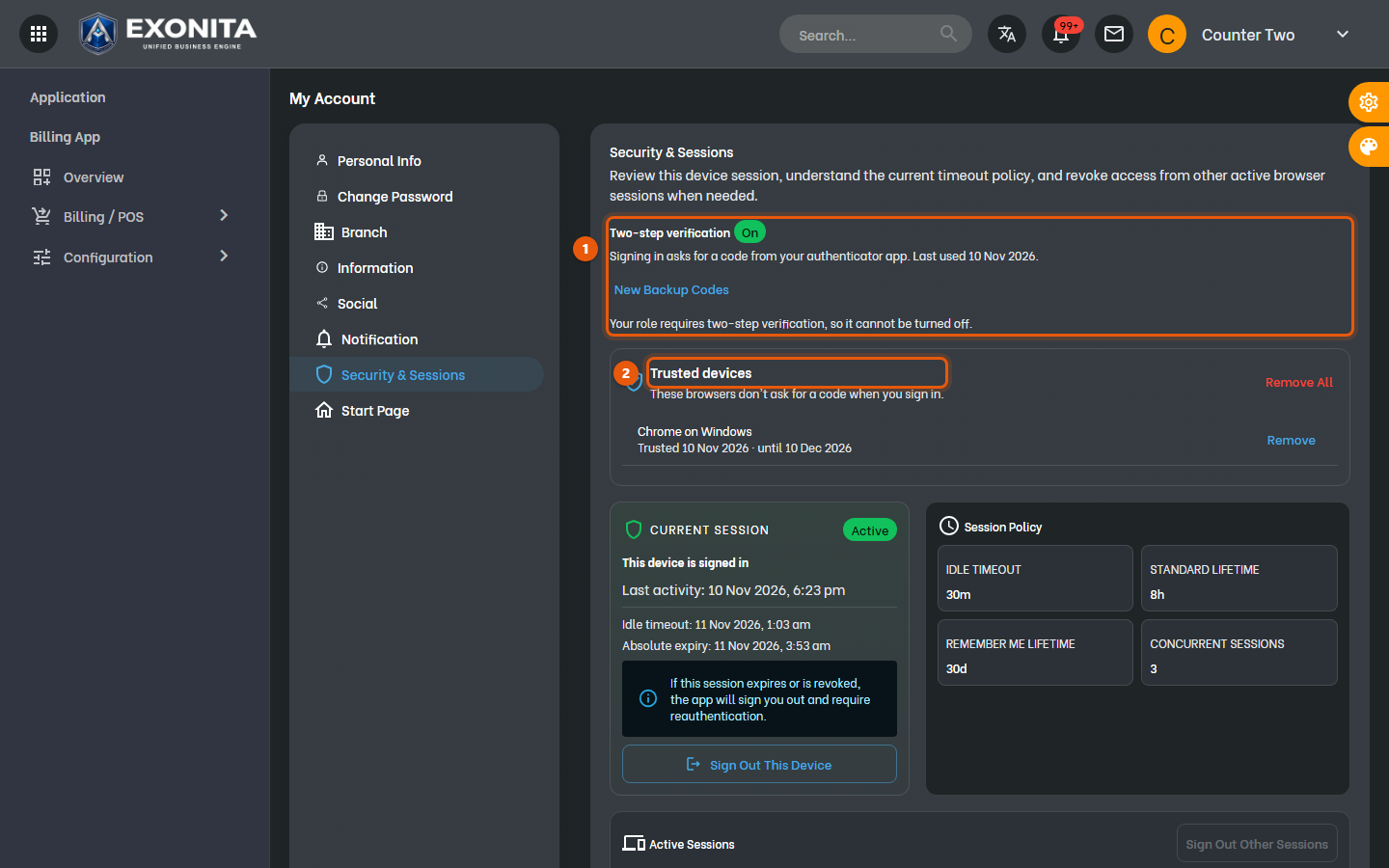
Open My account → Security & Sessions. Two-step verification shows On. Under Trusted devices, select Remove next to a browser to make it ask for a code again, or Remove All.
You'll see: Select New Backup Codes if you have used most of yours: you enter a code from the app, and the new set replaces the old one.
TipChanging your password or turning two-step verification off forgets every trusted device.
Task 5
Confirm it's you before a protected action
Know why some actions ask for your code or password again.
WhereAny protected action, for example cancelling a bill
-
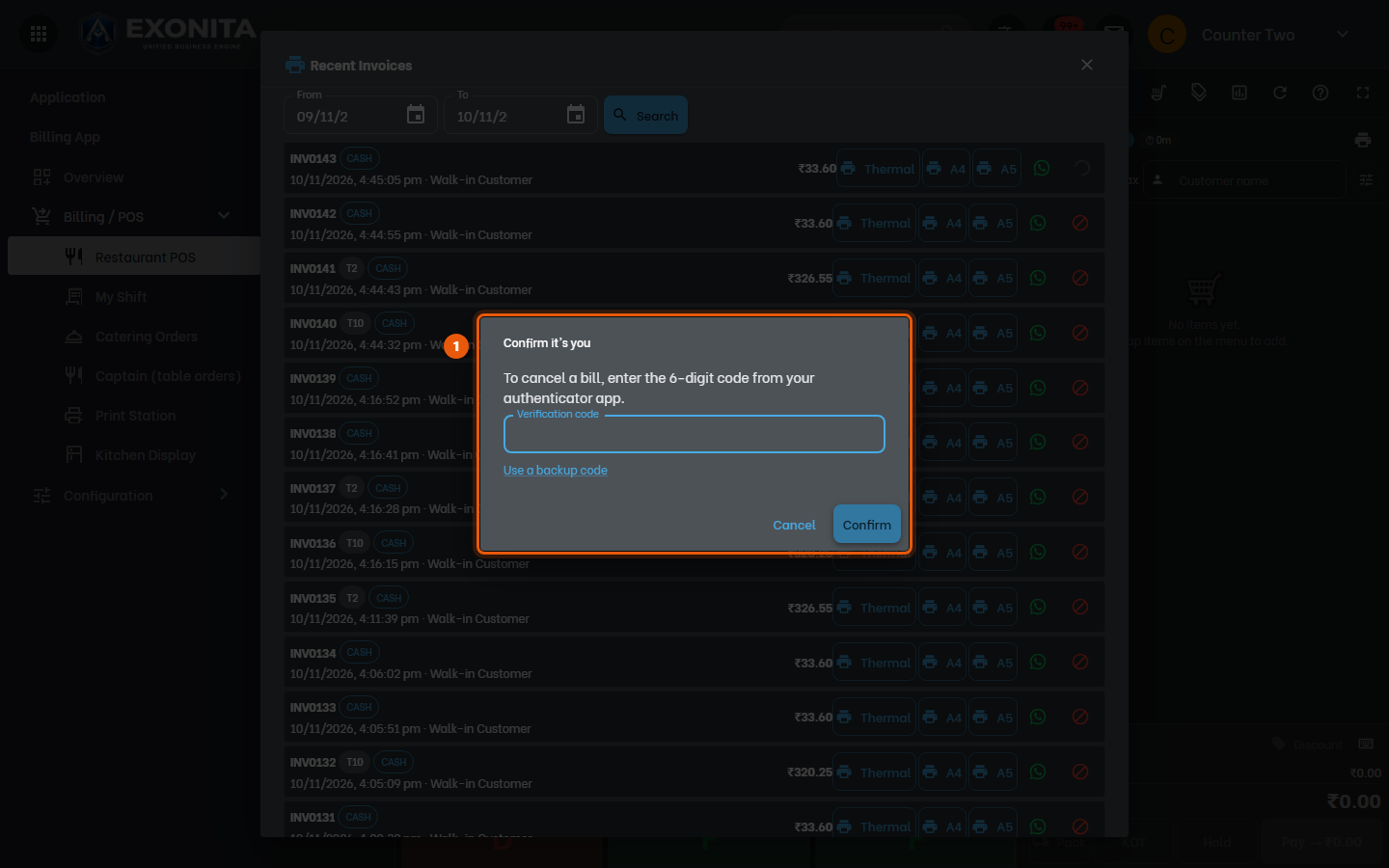
Your administrator can protect actions such as cancelling a bill, voiding a dish the kitchen already has, or changing users. When you do one, Confirm it's you opens: type the 6-digit code from your app (or a backup code). Staff without two-step verification type their password instead.
You'll see: The action goes ahead. For about 4 minutes, repeating the same action doesn't ask again.
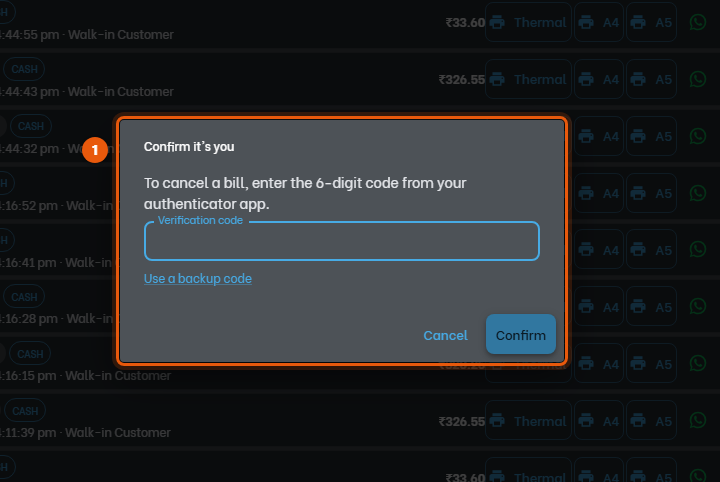
TipSelect Cancel if you didn't mean to do it: nothing changes.