Exonita POS · Supermarket · Cashier guide
Cashier
Open your till, scan and bill items on the Supermarket POS or the Quick POS, take payment, park a bill, save a quotation, check your bills and close your till.
What you can do
- Scan barcodes or search products and bill them on either counter
- Take cash, card and UPI payments, or split a payment
- Park a bill and recall it later
- Save a quotation or a delivery challan instead of a bill
- See today's bills, reprint them, and cancel a bill if needed
- Open and close your own till and check your sales in My Shift
Ask your administrator
- If the counter says This device isn't registered as a billing terminal, ask your administrator to register it.
- If the till can't open because an earlier business day is still open, ask your administrator to close it in Day Close.
- Prices, products, stock and discounts beyond your limit are set by your administrator.
Your administrator can change what your login can see. If a button in this guide is missing for you, ask them.
Your day at a glance
Task 1
Sign in
Open your workspace with your own login.
WhereYour web browser
-
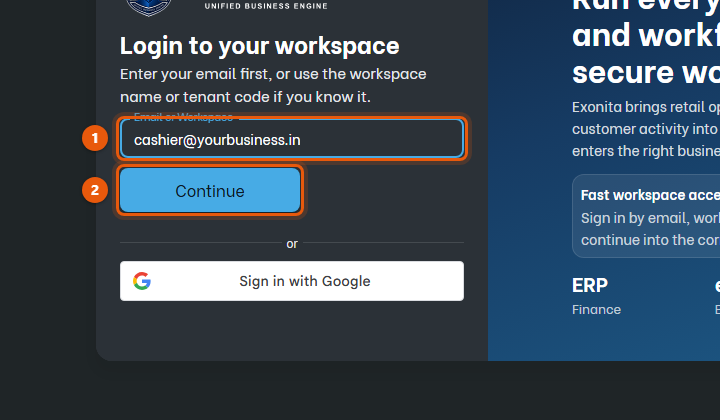
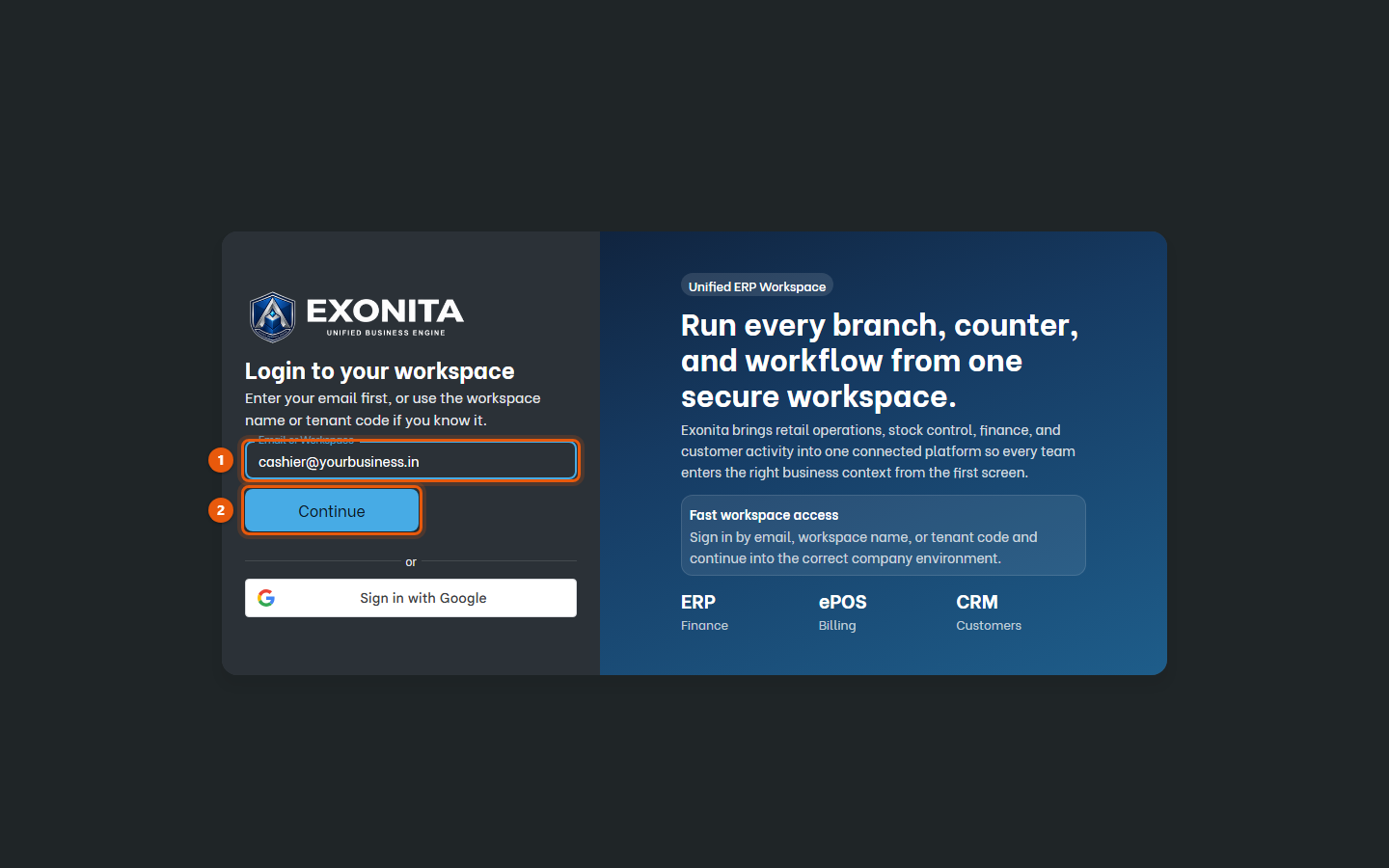
Open the address your administrator gave you. Enter your email in Email or Workspace and select Continue, then enter your Password and select Login.
You'll see: The supermarket counter opens.
TipAlways sign in with your own login. Every bill is recorded under your name.
Task 2
Open your till
Start your shift by counting the cash already in your drawer.
WhereSupermarket POS
-
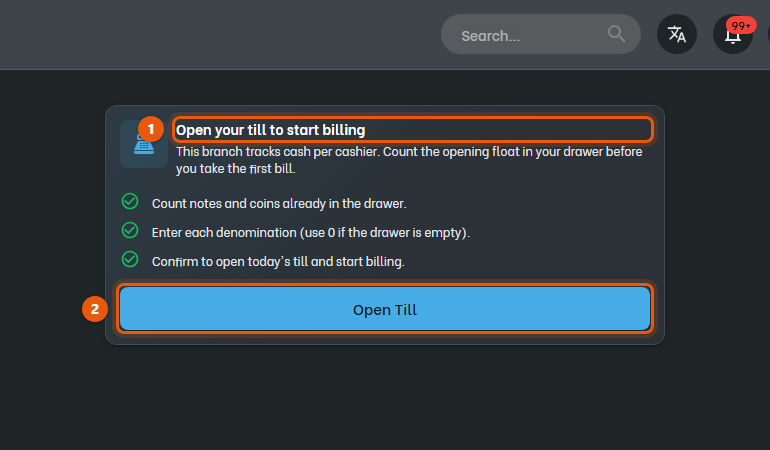
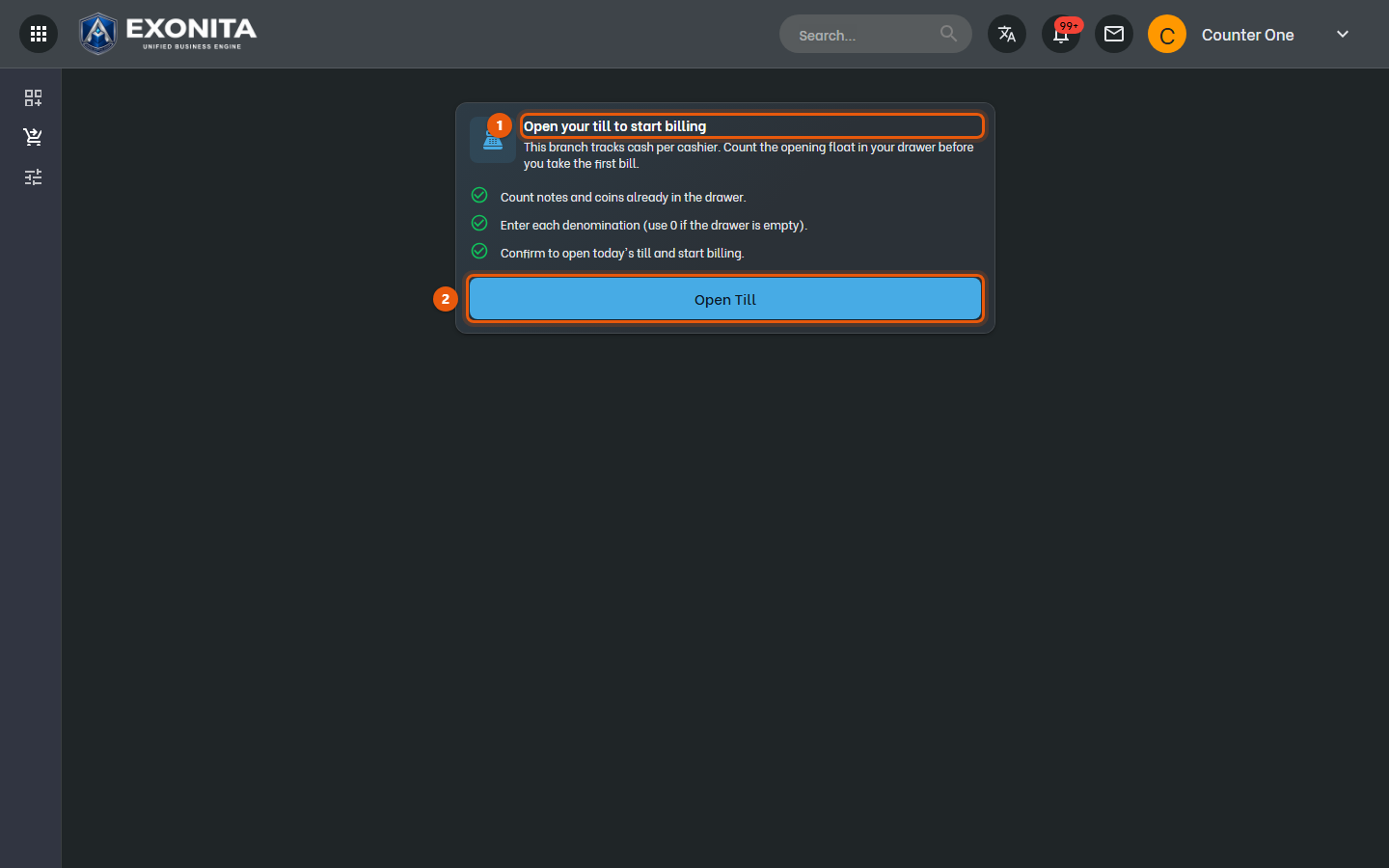
After you sign in, the counter asks you to Open your till to start billing. Select Open Till.
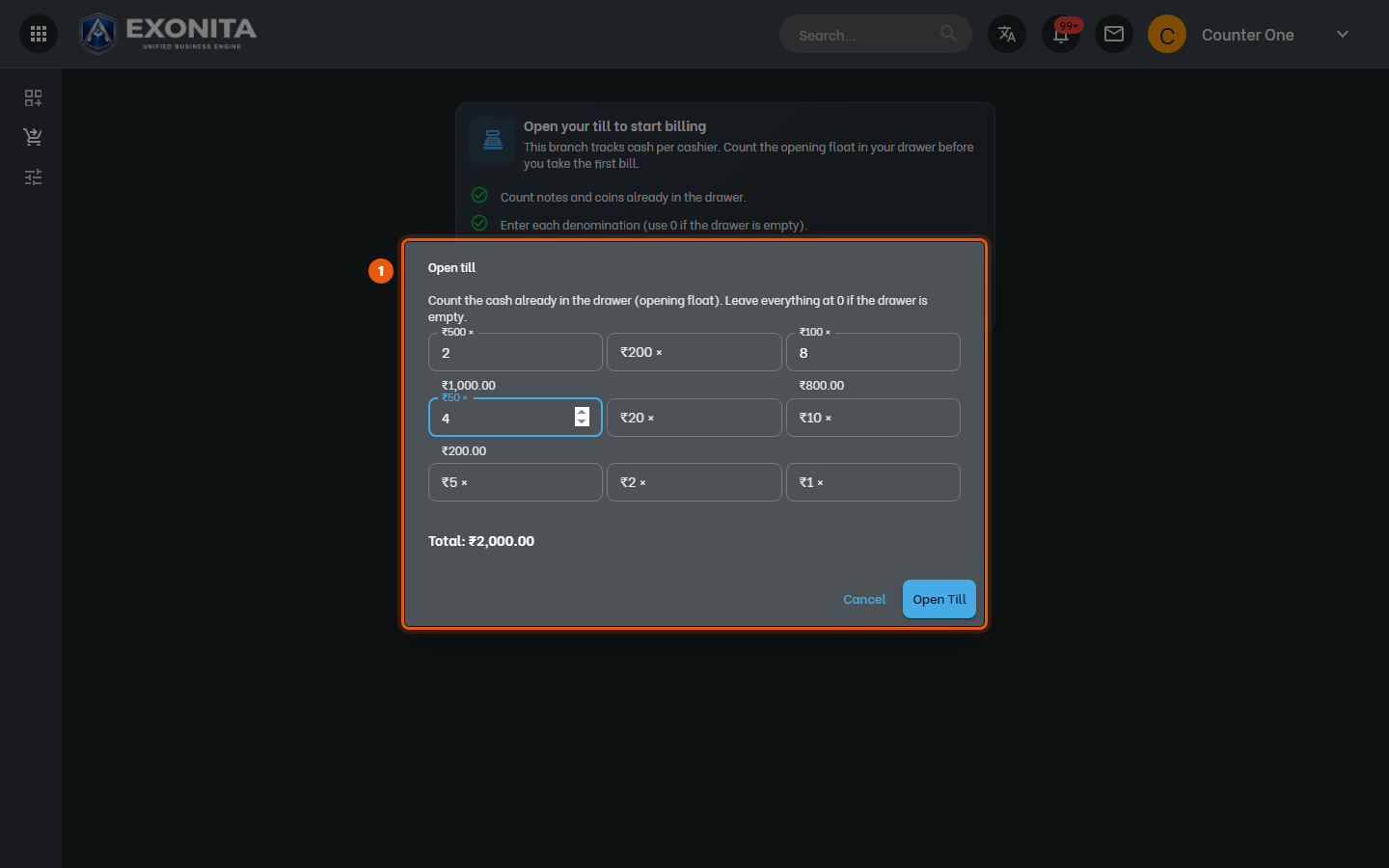
You'll see: The Open till window opens.
-
Count the notes and coins in your drawer and enter how many of each you have. Leave everything at 0 if the drawer is empty.
You'll see: Total shows your opening cash.
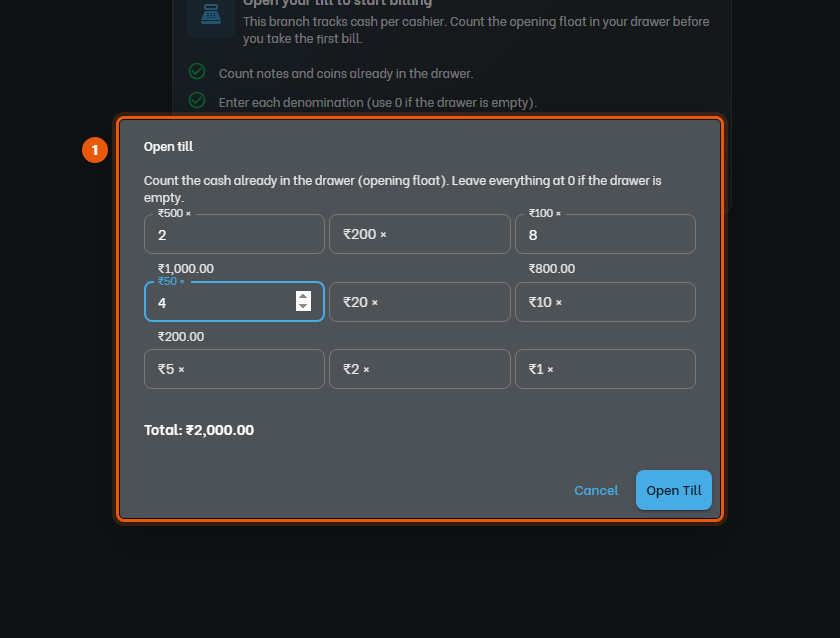
ImportantCount carefully. When you close your till, your drawer is compared with this amount plus the cash you collected.
-
Select Open Till.
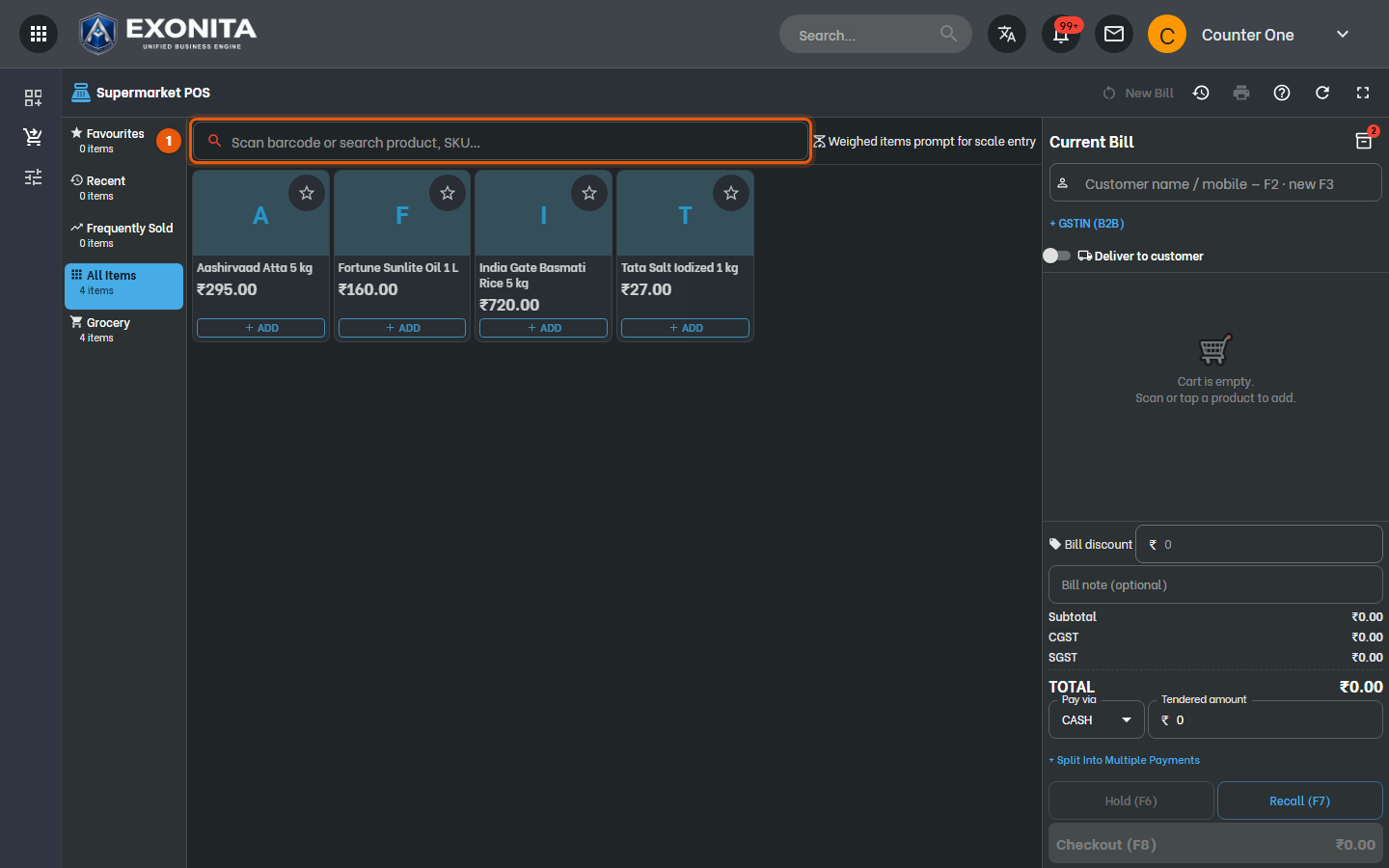
You'll see: The counter is ready for the first customer.
Task 3
Bill a customer on the Supermarket POS
Scan or pick the items, take payment and print the receipt.
WhereBilling / POS → Supermarket POS
-
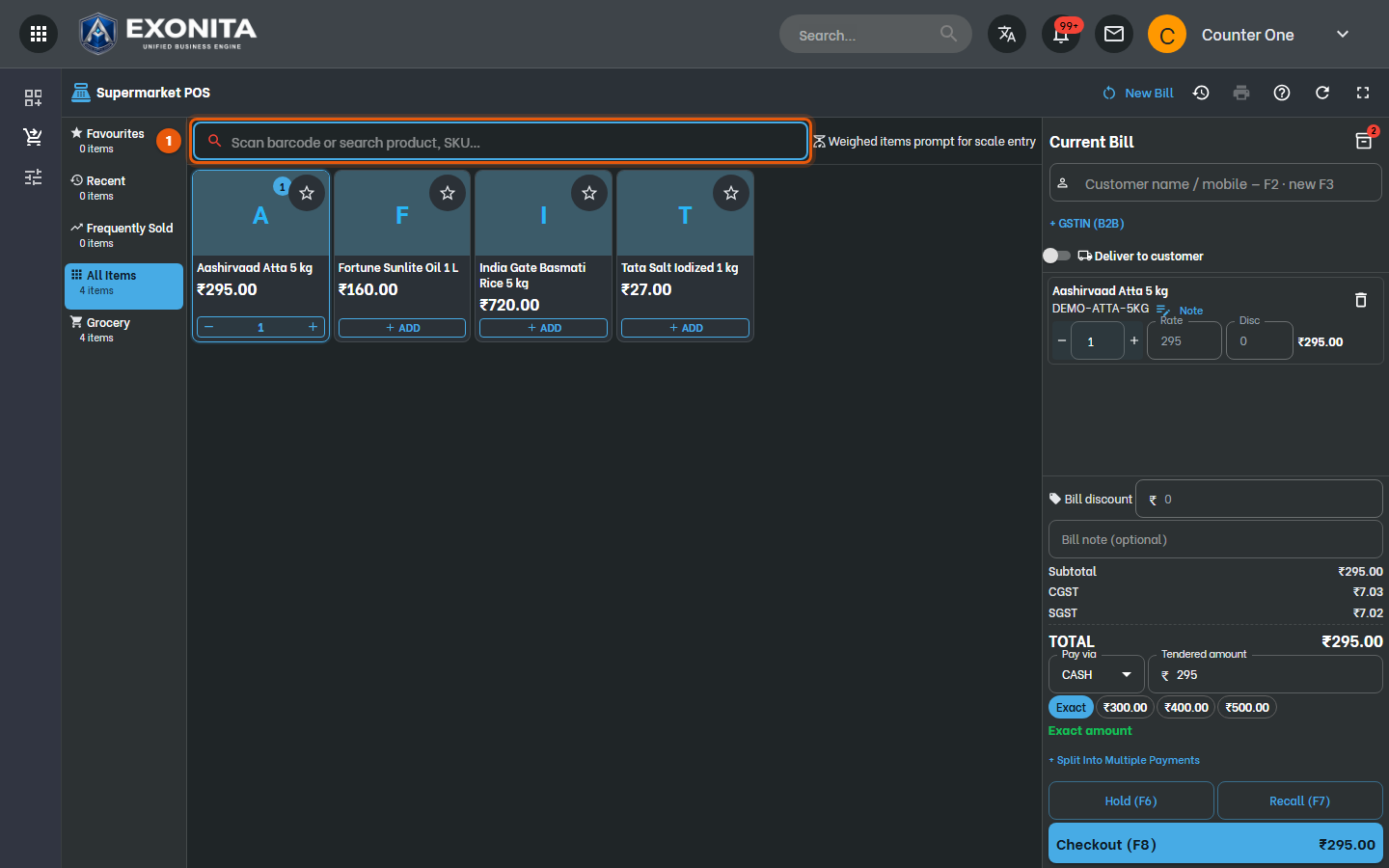
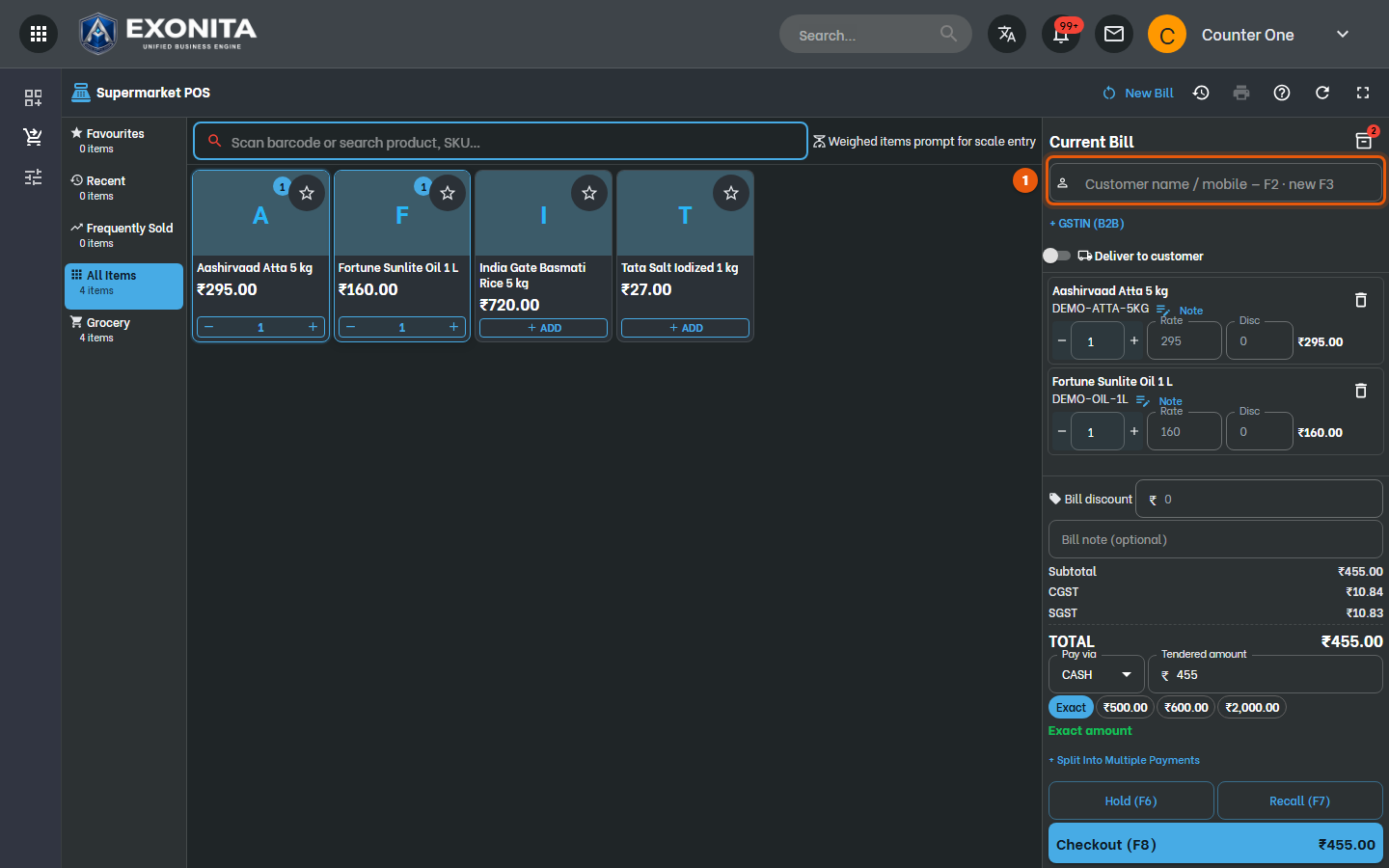
Scan the item's barcode, or type its name or SKU in Scan barcode or search product, SKU… and press Enter. Press / to jump to the box from anywhere.
You'll see: The item is added to Current Bill on the right.
-
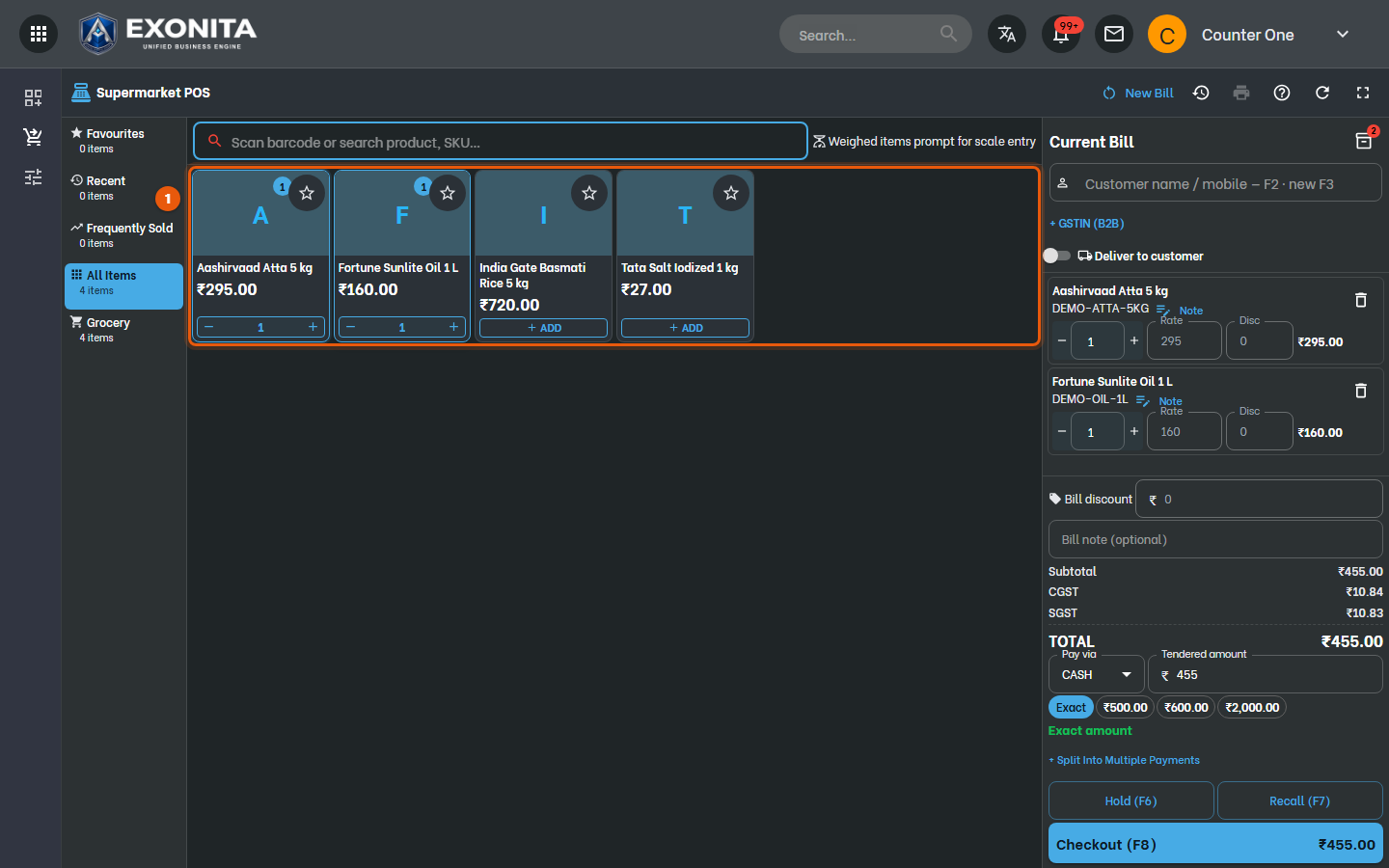
Or tap a product tile to add it. Pick a category on the left, or Favourites and Recent for your regulars.
You'll see: Tap the same product again to add one more. Change the quantity, rate or discount on the bill line.
TipWeighed items prompt for scale entry: for loose items sold by weight, the counter asks for the weight, or reads it from a label-scale barcode.
-
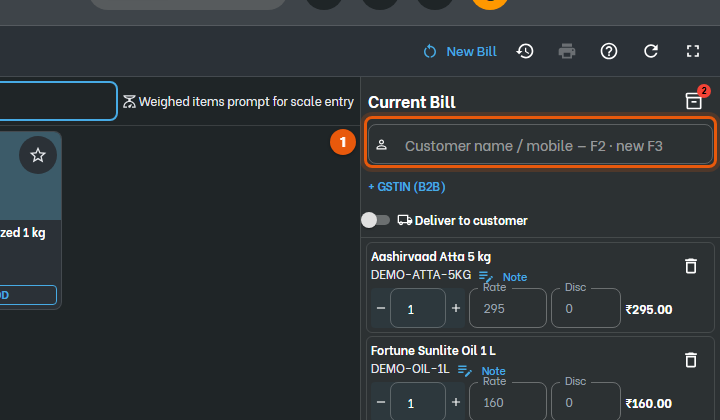
For a regular customer, search them in Customer name / mobile (F2), or add a new one (F3). Leave it empty for a walk-in sale.
You'll see: The customer prints on the bill. Select + GSTIN (B2B) for a business customer's GST invoice.
-
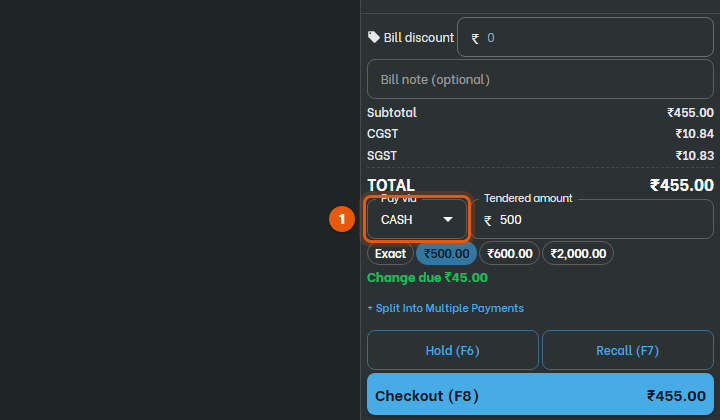
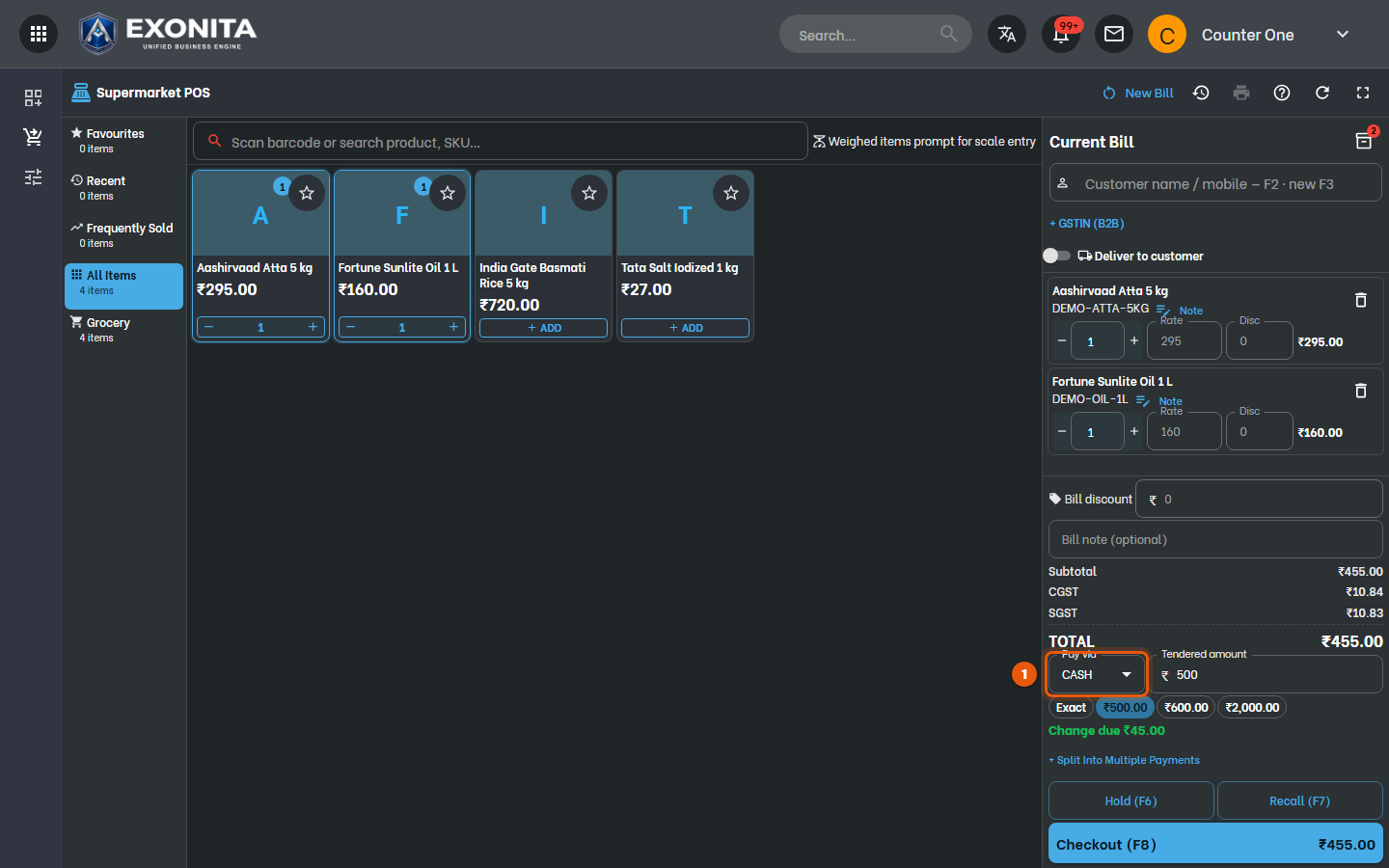
Under Pay via, choose CASH, card or UPI. For cash, select Exact or a quick amount such as ₹500, or type what the customer gave you in Tendered amount.
You'll see: The change to give back is shown. To take part in cash and part by card, select + Split Into Multiple Payments.
-
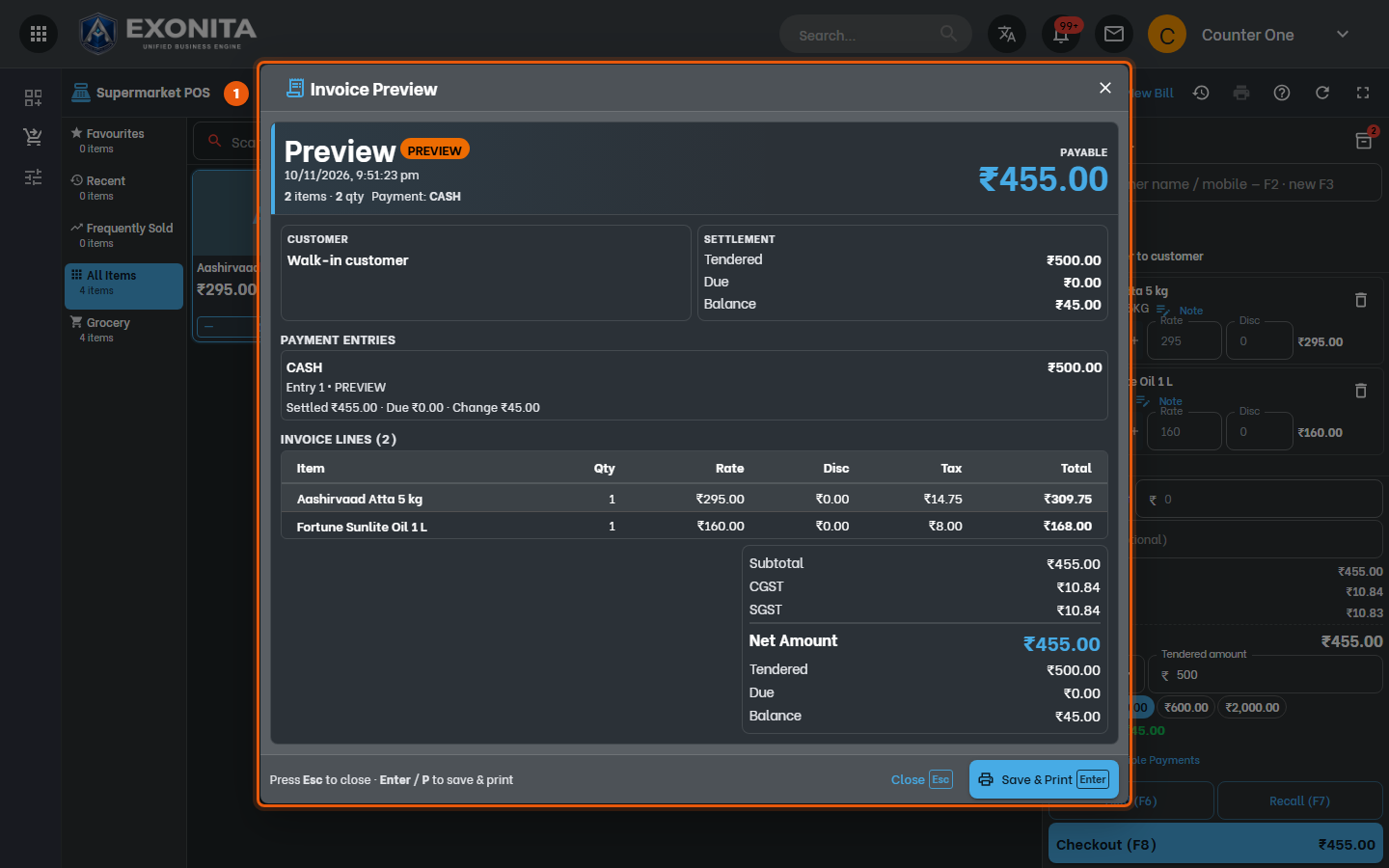
Select Checkout (F8).
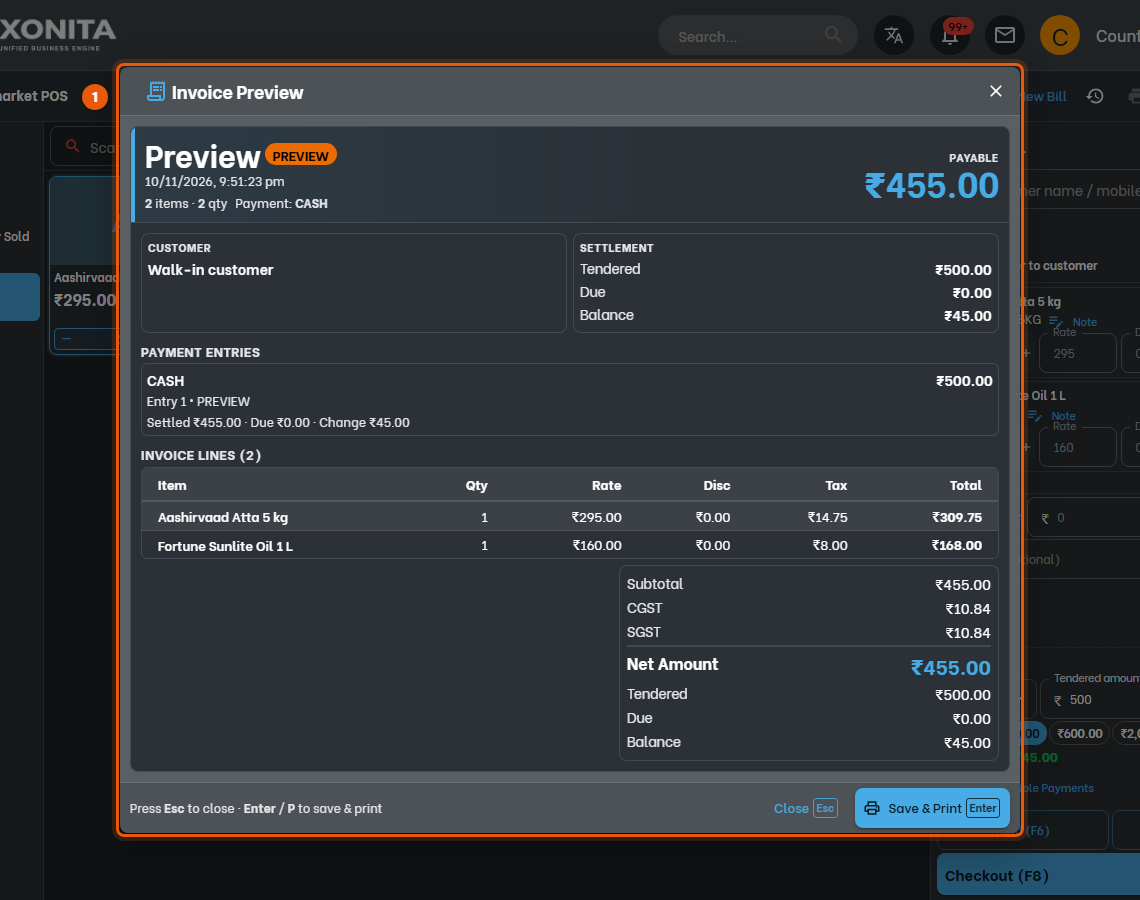
You'll see: Invoice Preview shows the items, tax, what the customer paid and the change.
-
Select Save & Print or press Enter.
You'll see: Payment Successful shows the invoice number. Print a Thermal Receipt T or A4 Invoice A, or send it on WhatsApp W. Select New Bill N for the next customer.
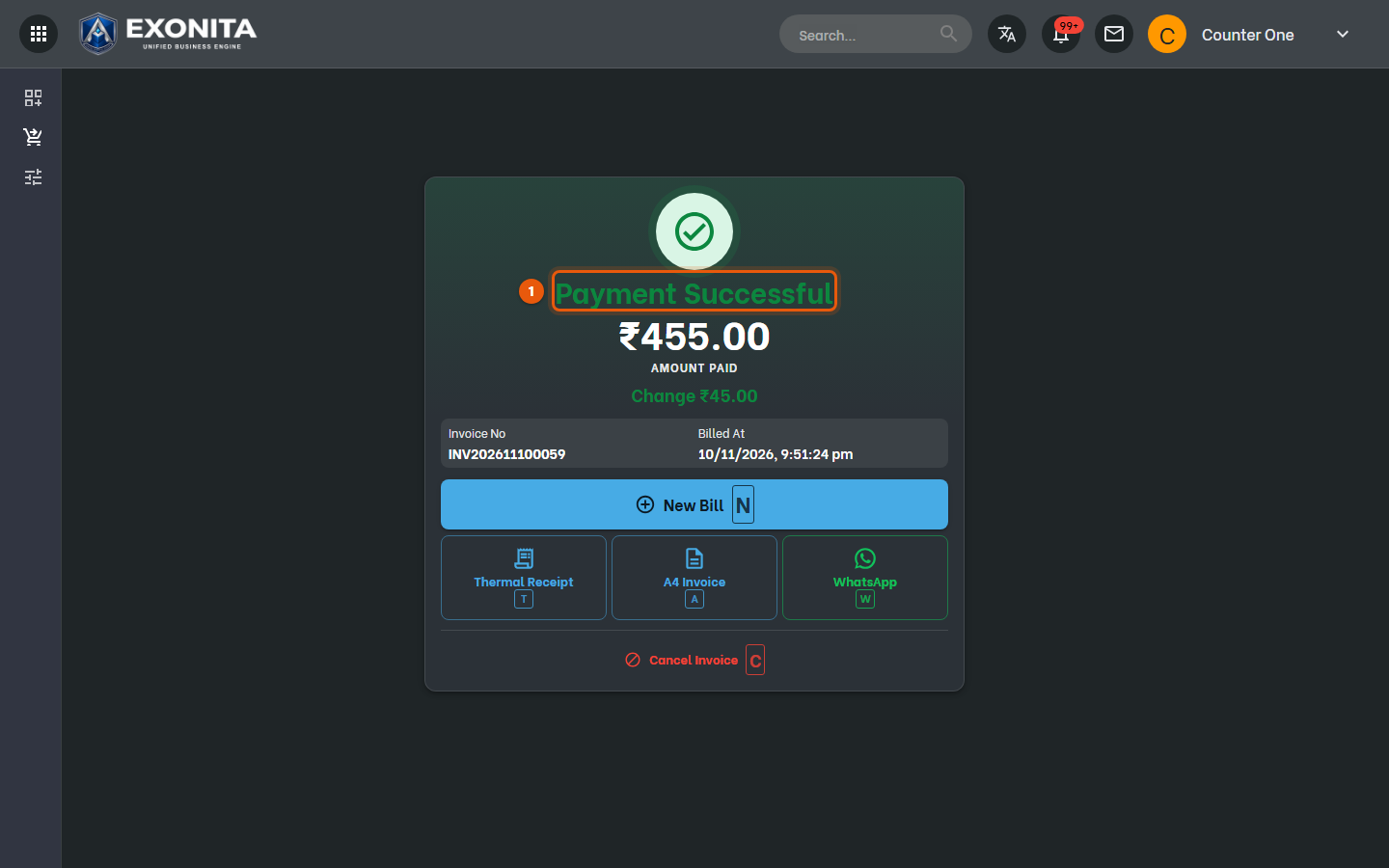
ImportantCheck the total before you confirm. A posted bill can be cancelled (Cancel Invoice C), but not edited.
Task 4
Park a bill and pick it up later
Serve the next customer while one is still shopping.
WhereSupermarket POS → Hold (F6) / Recall (F7)
-
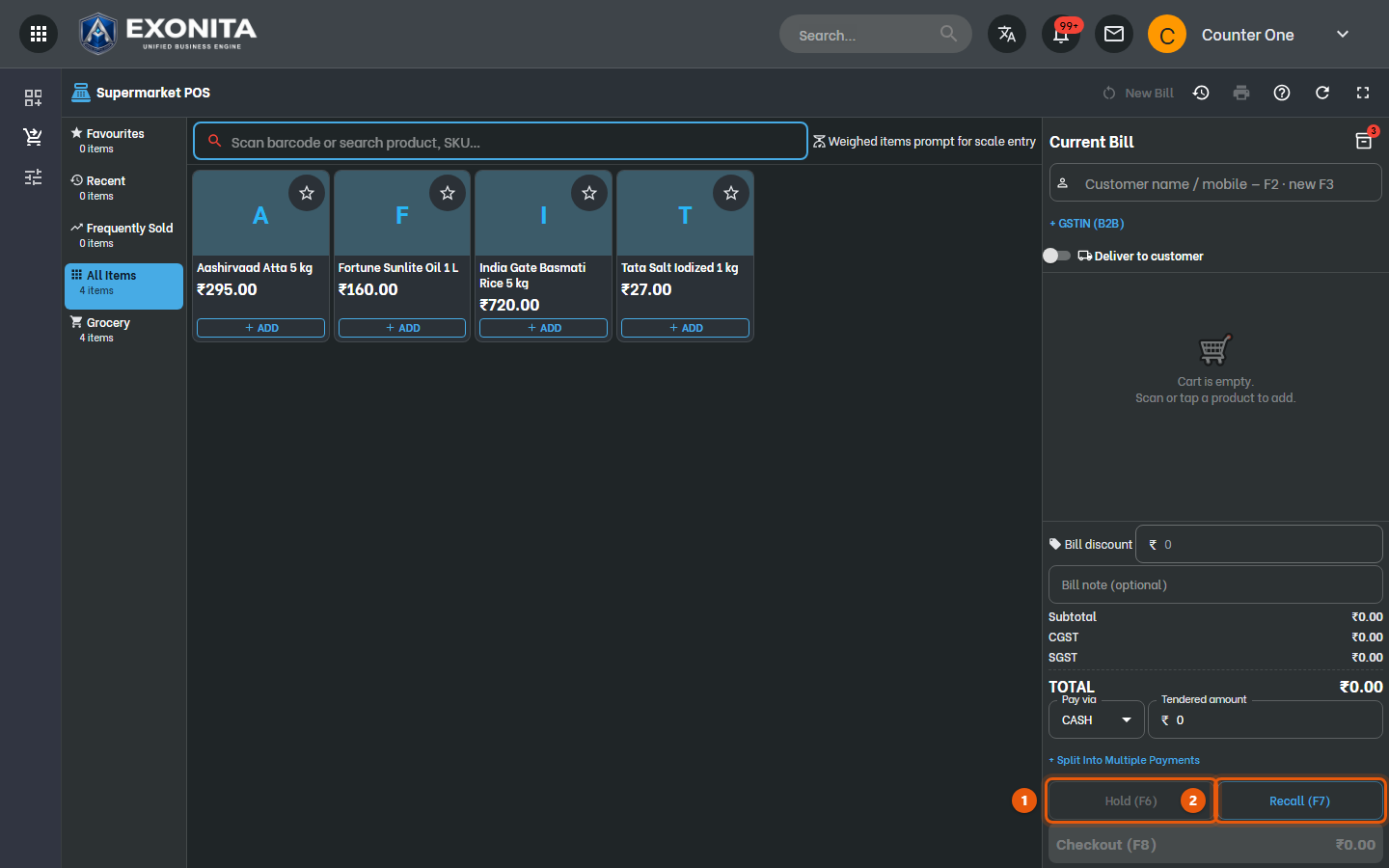
With items on the bill, select Hold (F6).
You'll see: The bill is parked and the counter is clear. The number on Recall (F7) goes up by one.
-
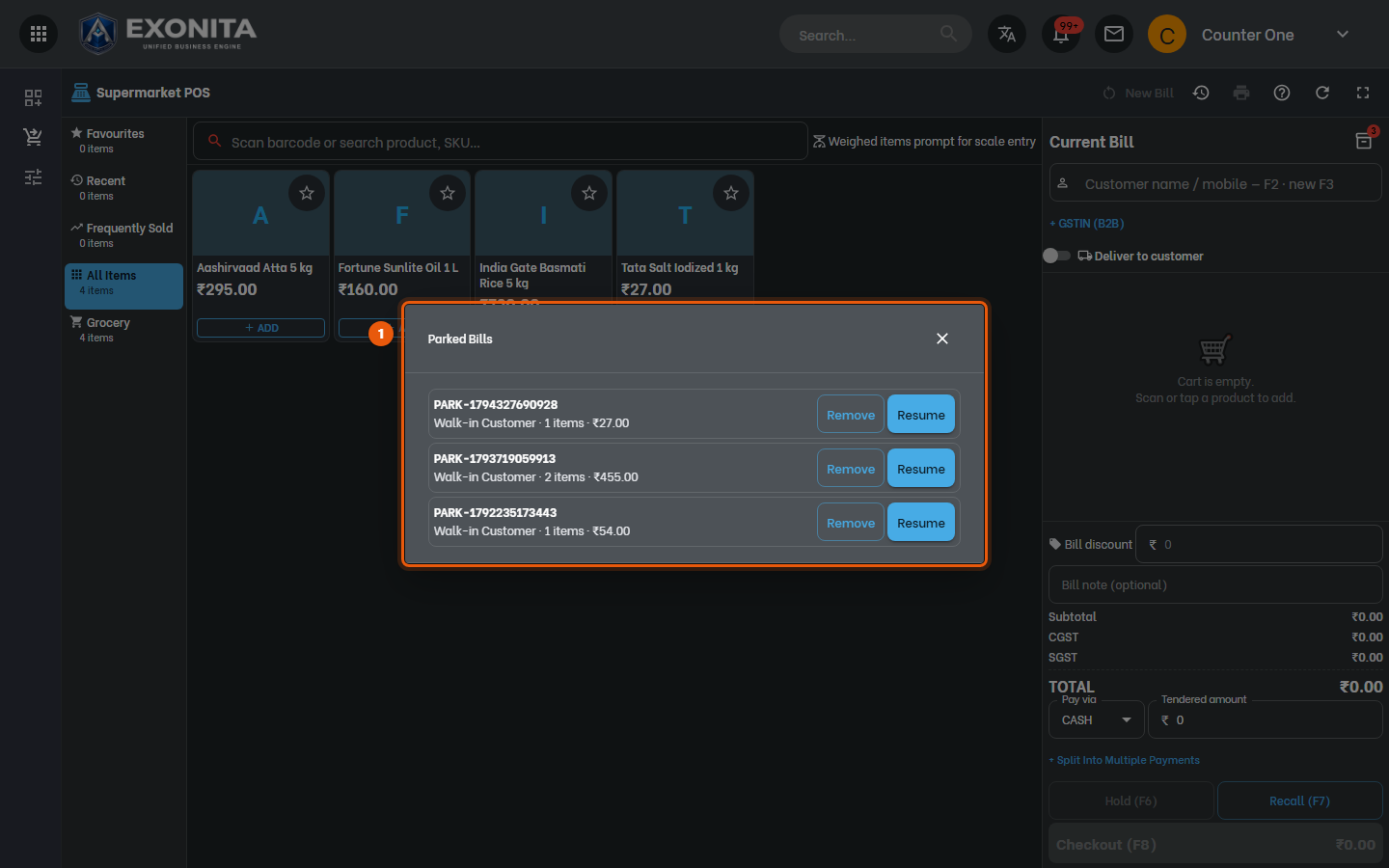
When the customer is back, select Recall (F7) and pick their bill.
You'll see: The bill opens again with everything on it.
Task 5
Bill fast on the Supermarket Quick POS
Bill with the keyboard: scan, or type a name, and the bill fills in as a list you can edit.
WhereBilling / POS → Supermarket Quick POS
-
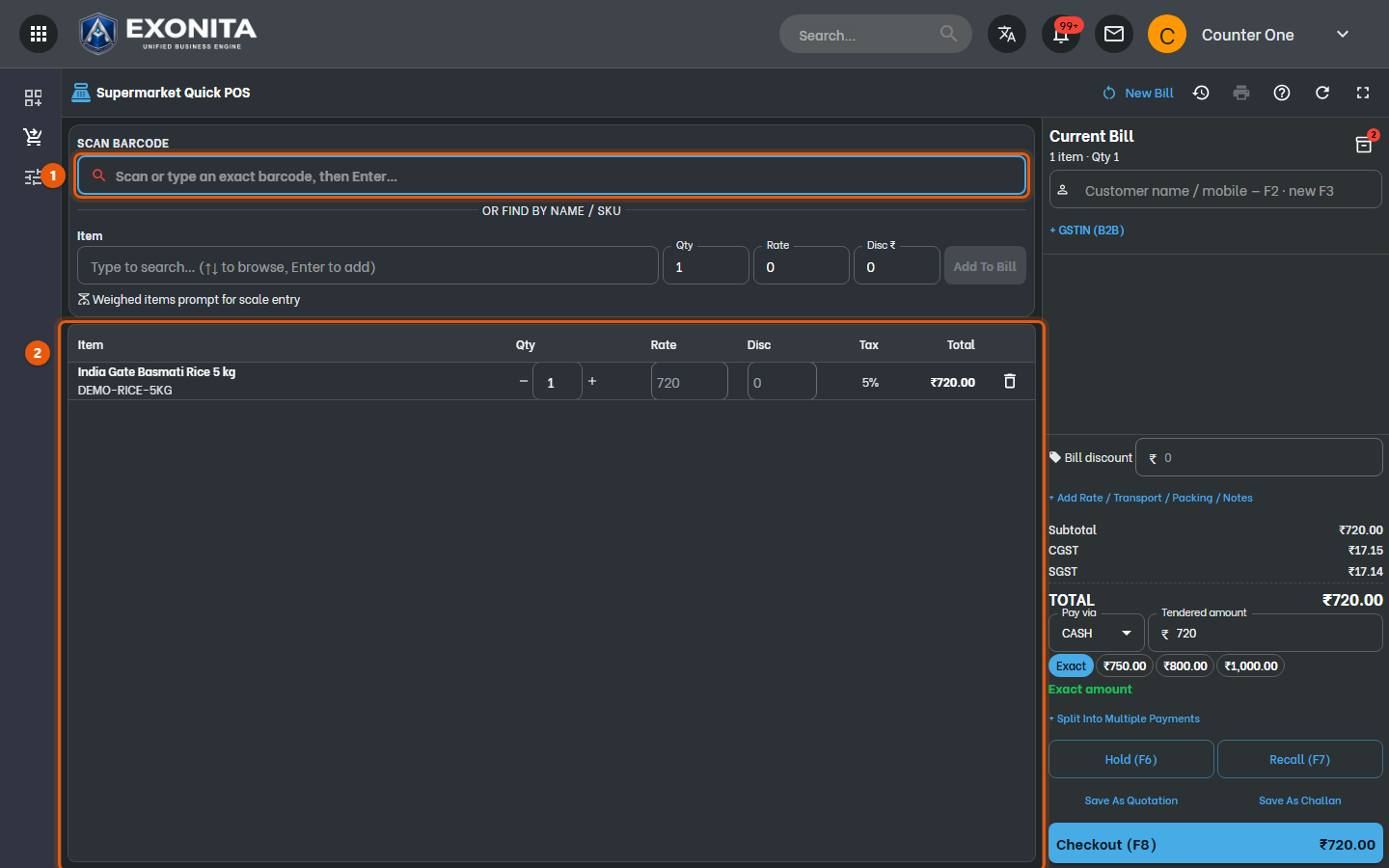
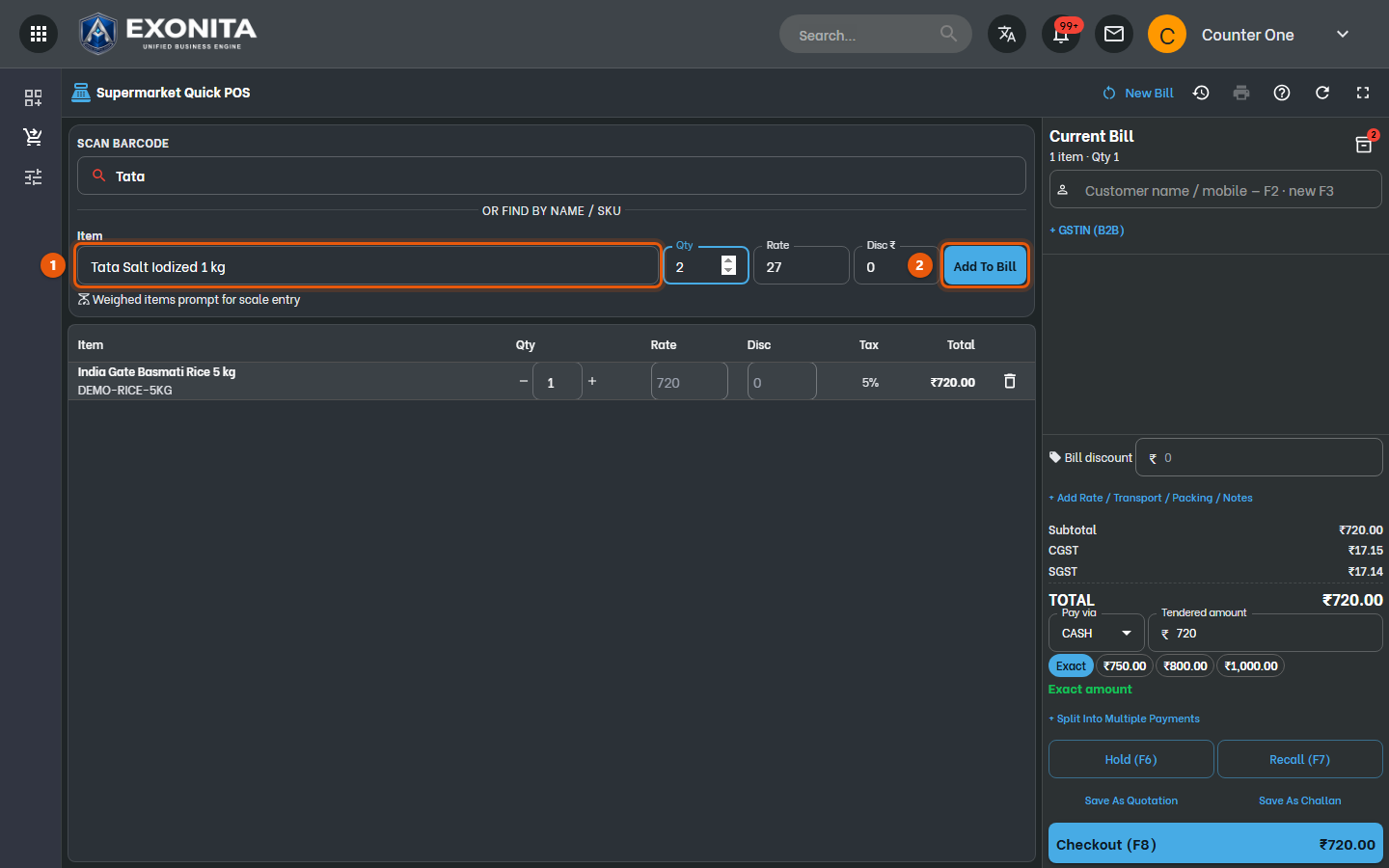
Open Supermarket Quick POS. Scan the barcode, or type it exactly in SCAN BARCODE and press Enter.
You'll see: The item is added at the top of the bill.
-
For an item without a barcode, type its name in Item (use [↑] [↓] to choose), set Qty, and press Enter or select Add To Bill.
You'll see: Newest items are listed first. Change any quantity, rate or discount right in the list.
-
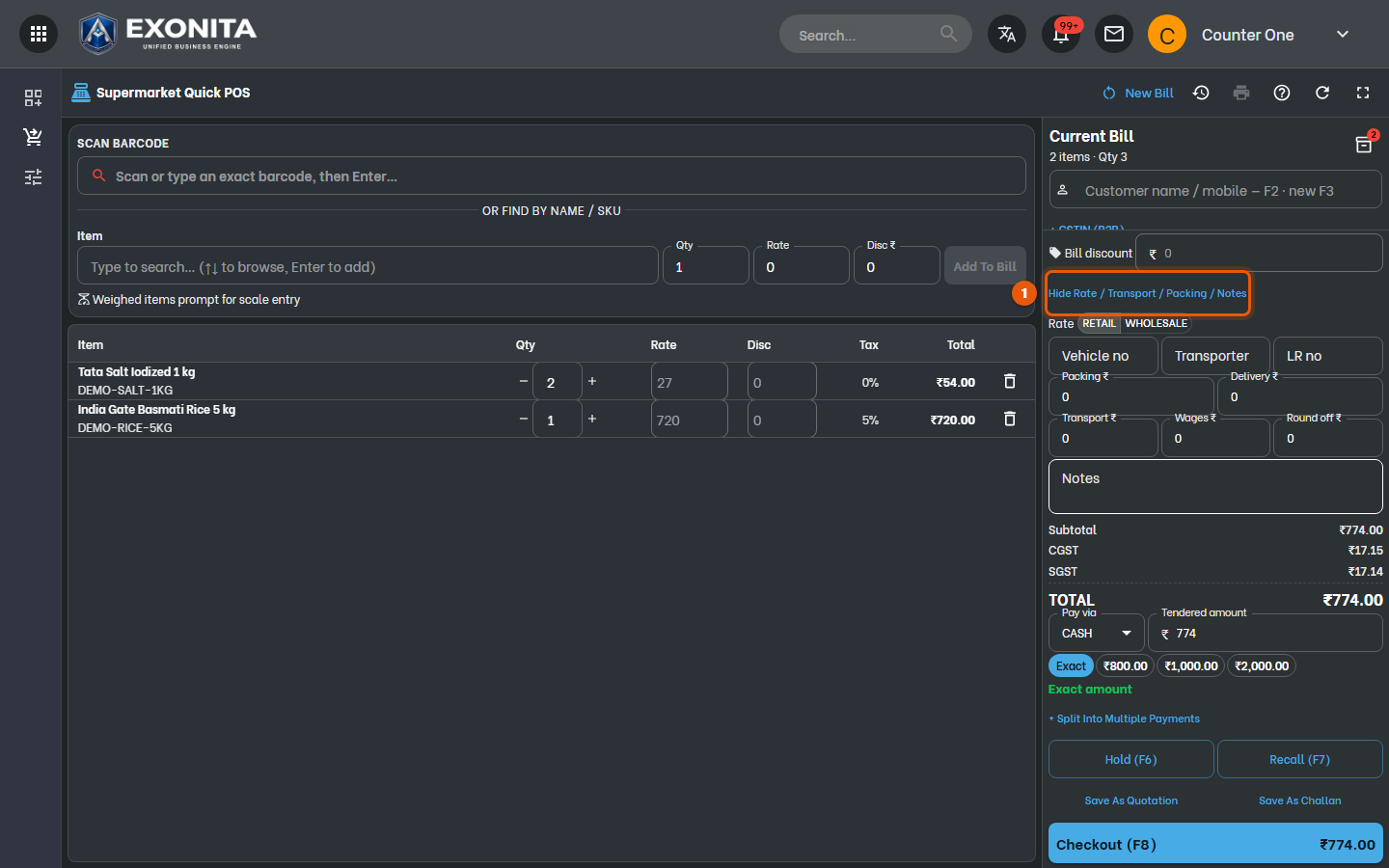
To bill at wholesale rates or add transport, packing or a note, select + Add Rate / Transport / Packing / Notes.
You'll see: The extra charges and notes print on the bill.
-
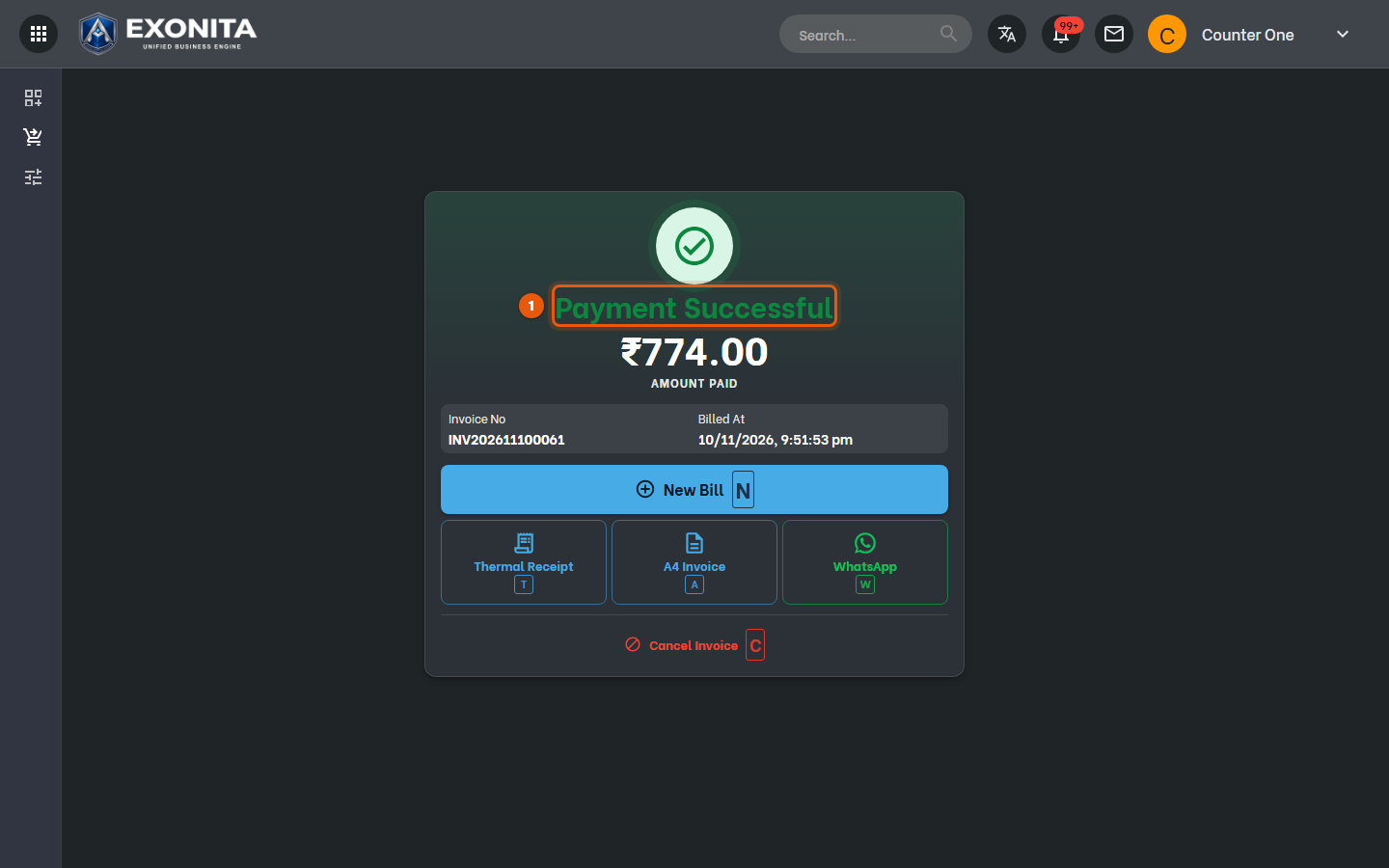
Choose the payment, then select Checkout (F8) and Save & Print, as on the Supermarket POS.
You'll see: Payment Successful shows the invoice number.
Task 6
Save a quotation or a delivery challan
Give a customer a price, or send goods with a challan, without billing yet.
WhereSupermarket Quick POS → Save As Quotation / Save As Challan
-
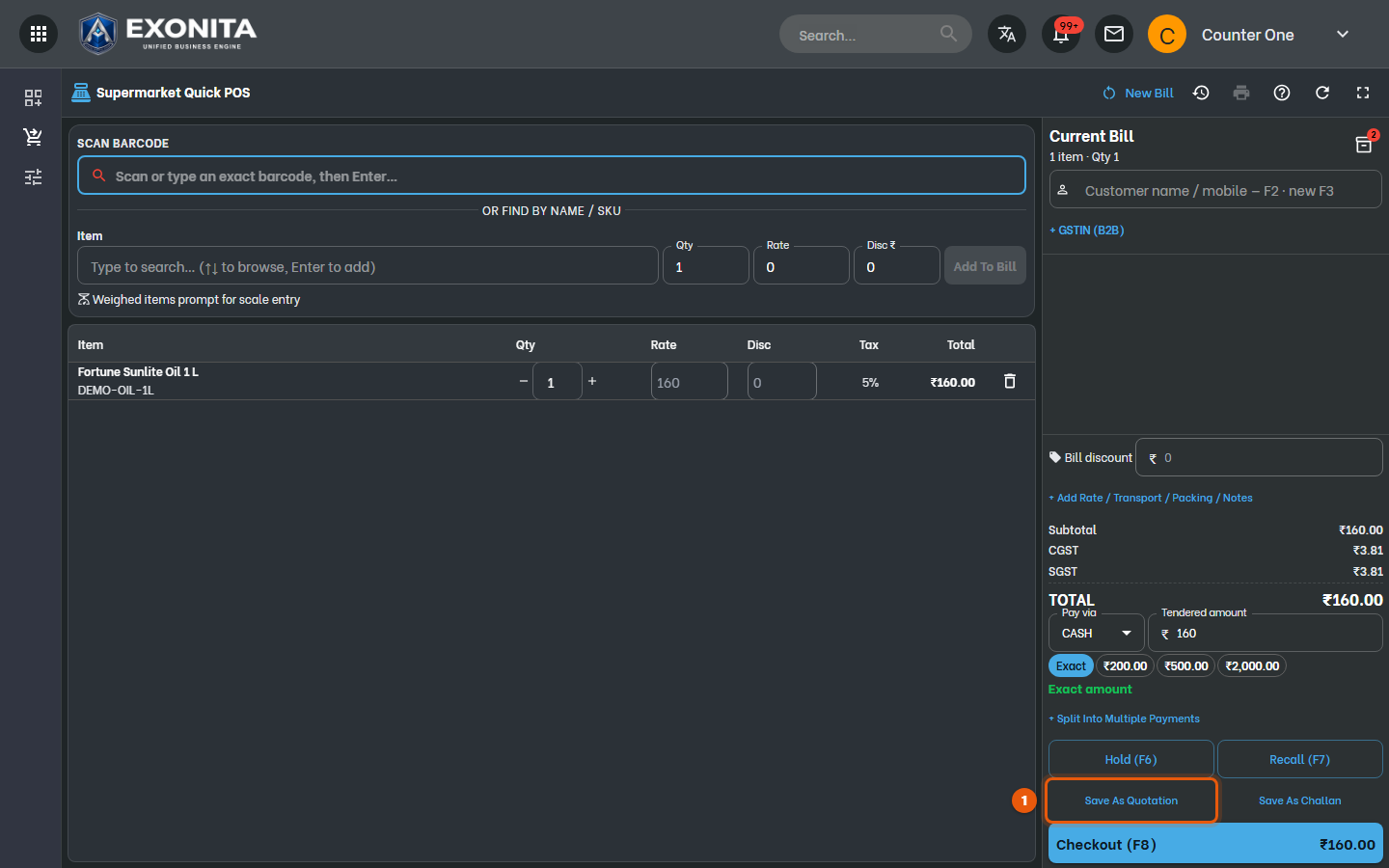
Add the items, then select Save As Quotation (no stock moves) or Save As Challan (for goods that leave on approval or for delivery).
You'll see: The quotation or challan is saved with its own number, and the counter is ready for the next bill.
Task 7
Find, reprint, return or cancel a bill
Look up a bill, print it again, take items back, or cancel it.
WhereCounter → Recent bills
-
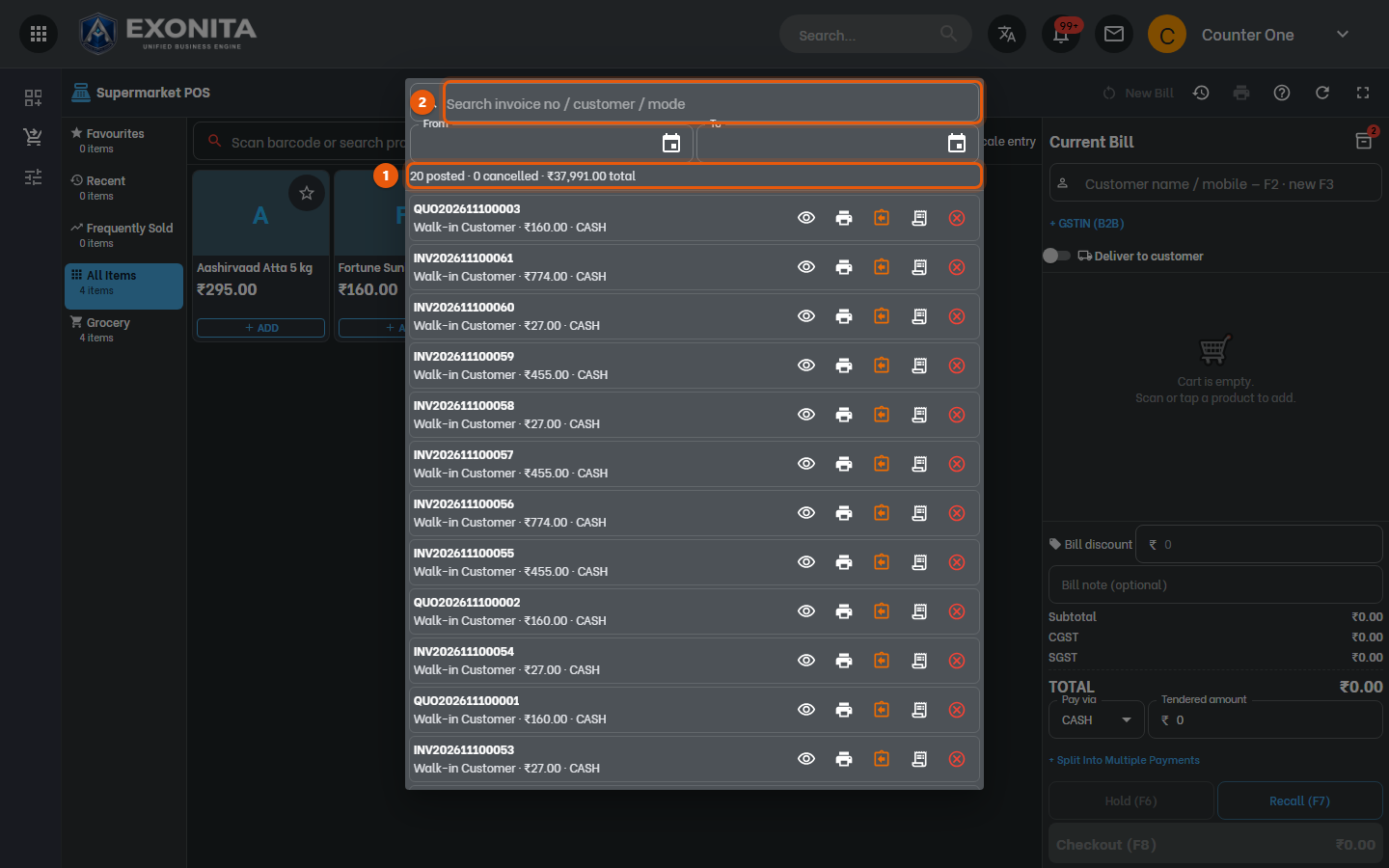
Select the Recent bills icon at the top of the counter, or press Alt+2. Search by invoice number, customer or payment mode, or set From and To.
You'll see: The bills are listed newest first, with quotations (QUO…) and credit notes (CRN…). The icons on each bill are View, Reprint, Sales return, e-Invoice / e-Way Bill and Cancel.
-
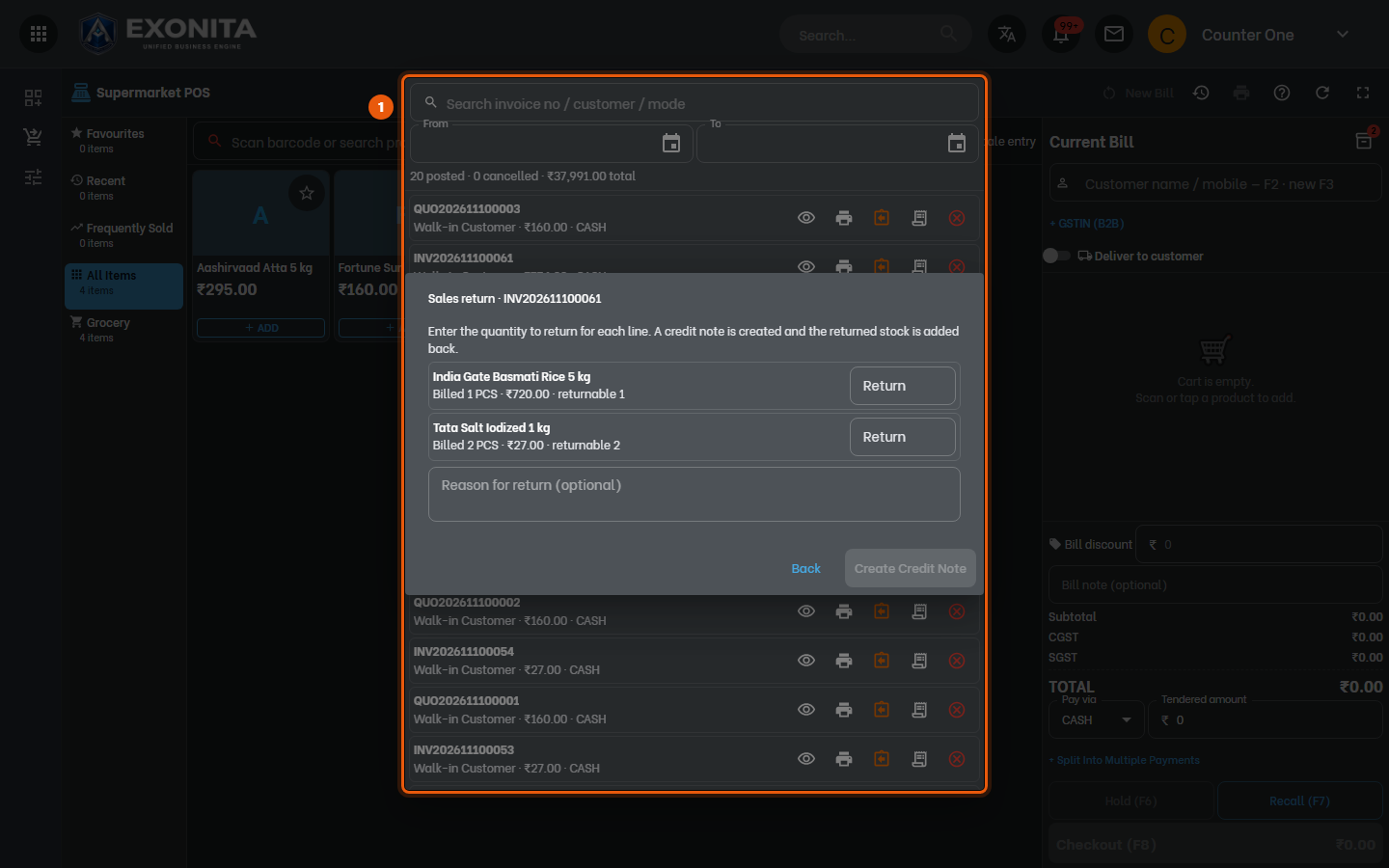
When a customer brings items back, select Sales return on their bill, choose the items and quantities, and confirm.
You'll see: A credit note (CRN…) is made for the returned items, and they go back into stock.
TipReturns show in My Shift and in Day Close, and the refund is taken out of the cash expected in your drawer.
-
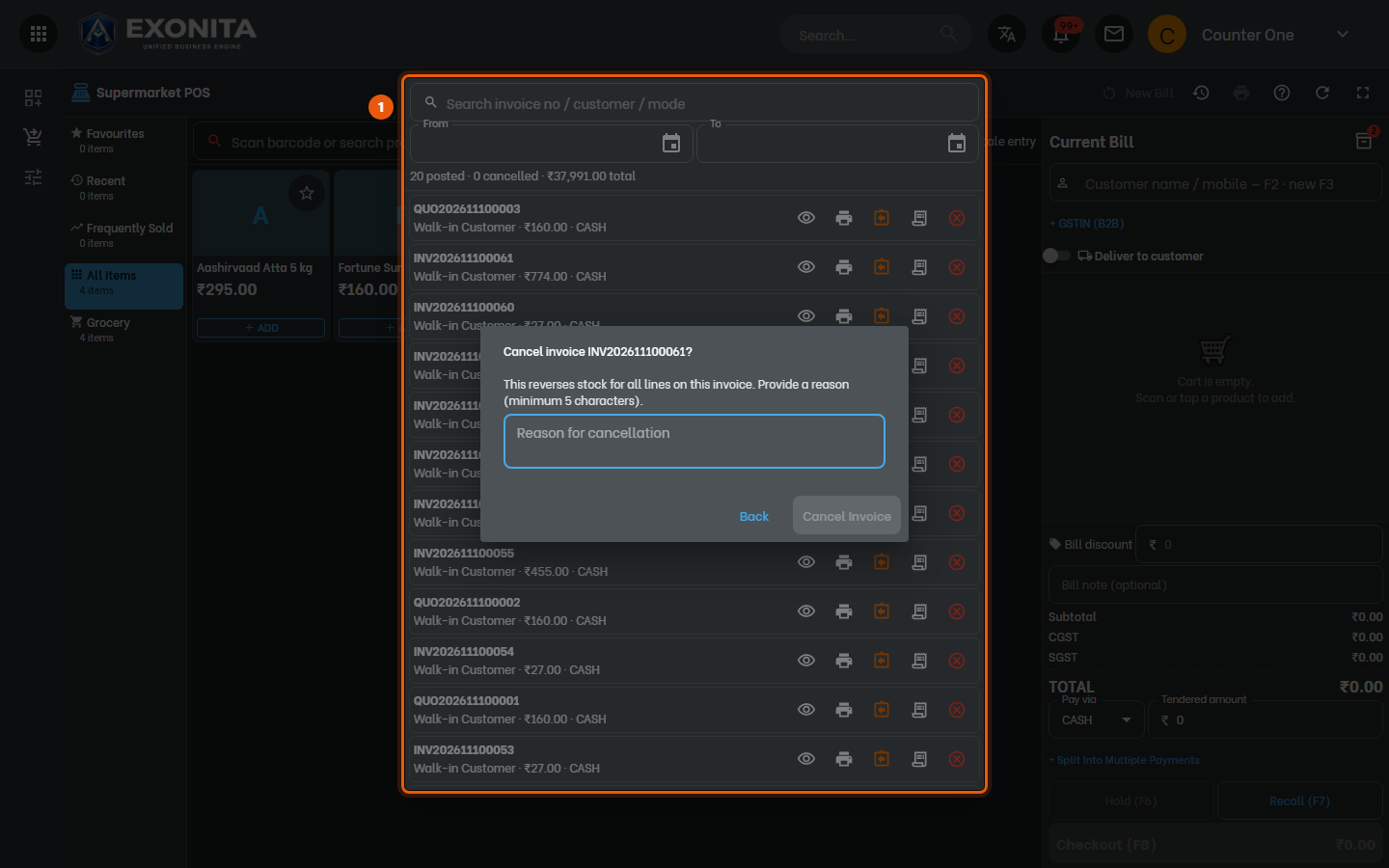
To cancel a bill posted by mistake, select Cancel (the red icon) on it, enter the Reason for cancellation (at least 5 characters) and confirm. Select Back to keep the bill.
You'll see: A cancelled bill puts its items back in stock and shows under Cancelled in My Shift.
ImportantEvery cancellation is recorded with your name and the reason. If your workspace protects cancellations, Confirm it's you asks for your code or password first.
Task 8
Check your shift
See your bills and the cash you should have in your drawer.
WhereBilling / POS → My Shift
-
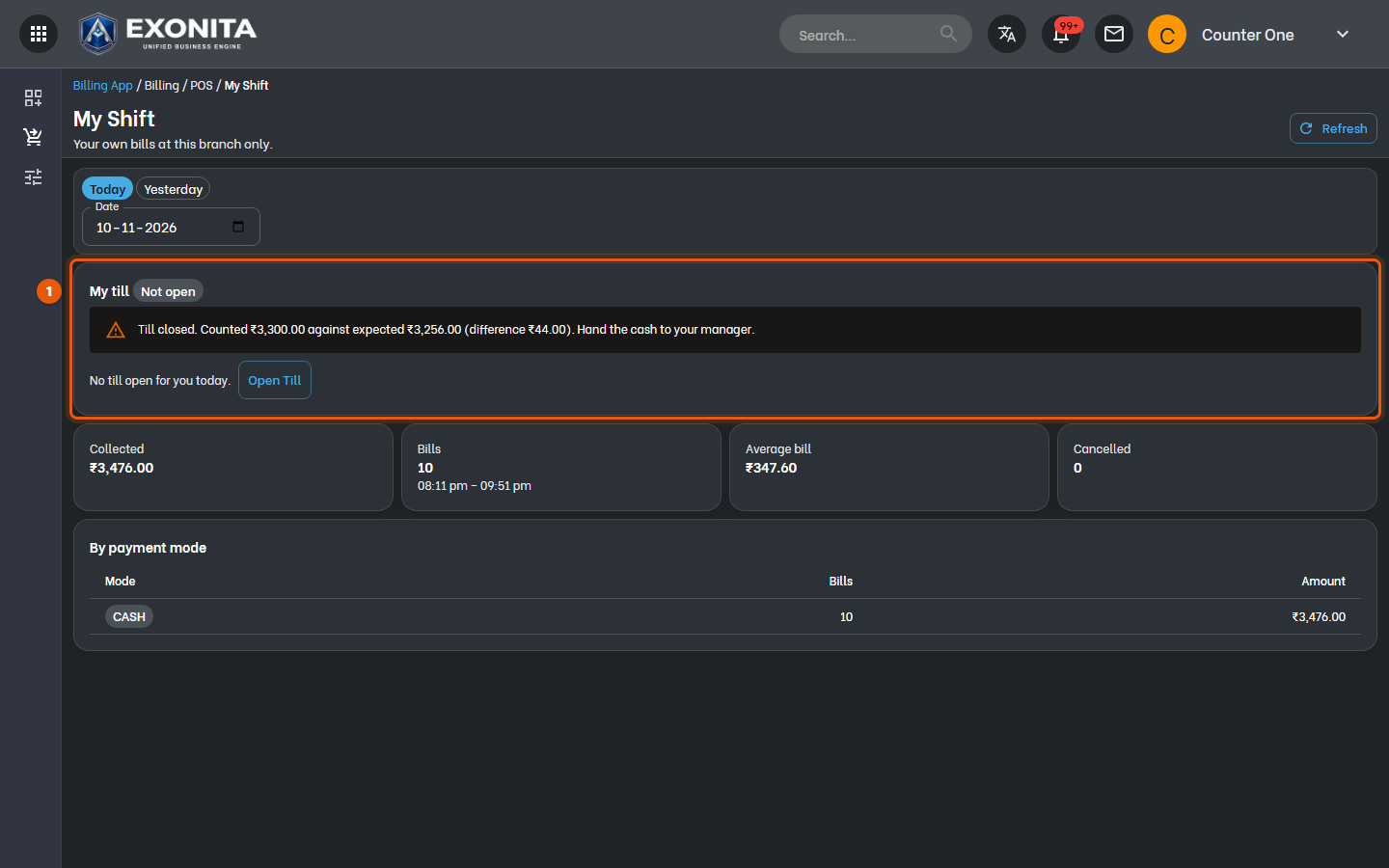
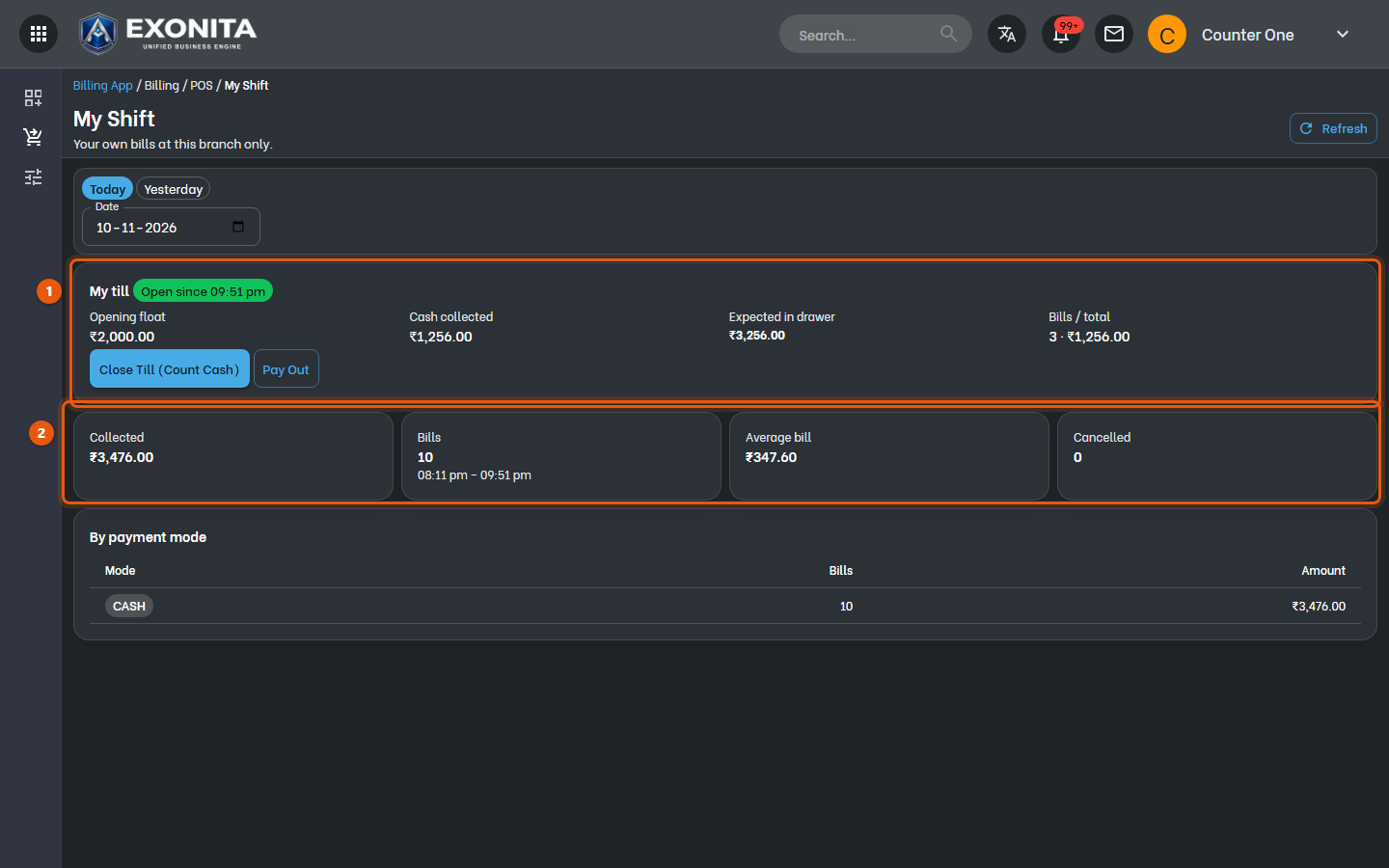
Open My Shift from the left menu.
You'll see: My till shows your opening float, the cash you collected and what should be in your drawer. Below are your bills and the split by payment mode.
TipMatch the Card and UPI totals with your card machine and UPI app before you close your till.
Task 9
Close your till
End your shift by counting the cash in your drawer.
WhereMy Shift
-
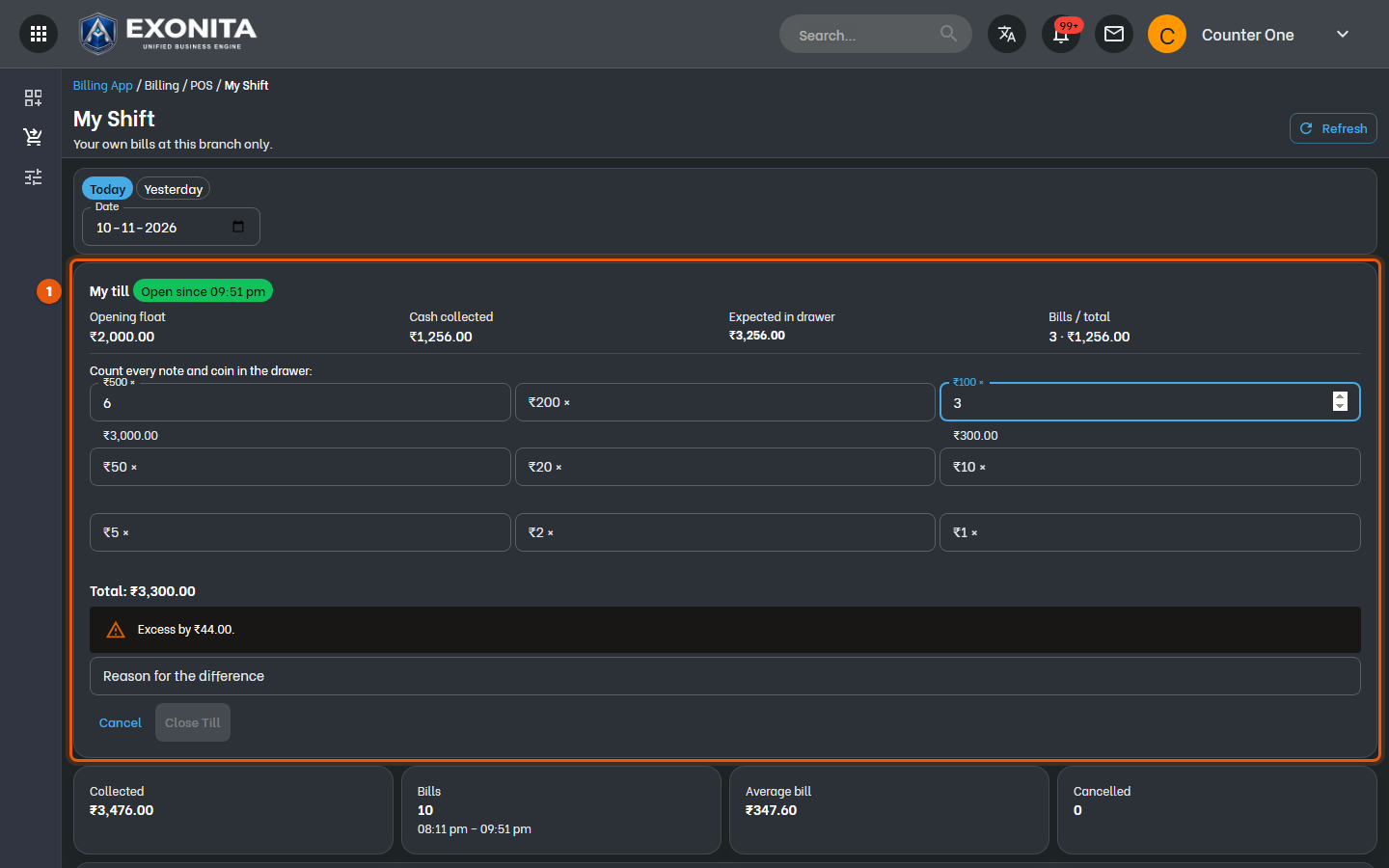
Select Close Till (Count Cash) and enter how many of each note and coin are in your drawer.
You'll see: If the count doesn't match, you see how much you are short or over.
-
If there is a difference, enter the Reason for the difference. Then select Close Till.
You'll see: Your till is closed. Hand the cash to your administrator.
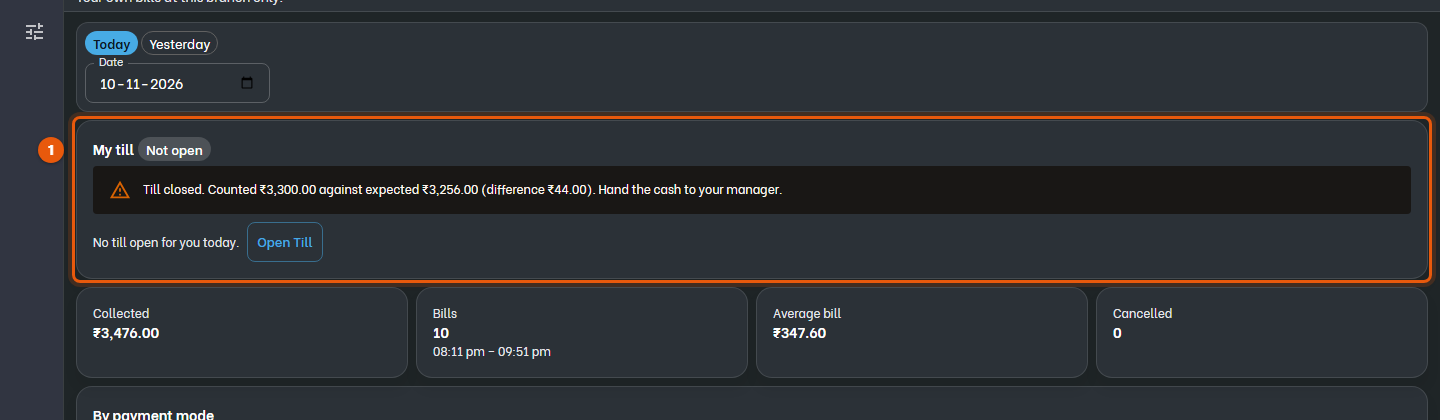
ImportantAfter you close your till you can't bill until you open a new one.